
Background:
Shopify introduced a platform change affecting third-party fulfillment apps. Order management apps can no longer create fulfillments for orders assigned to a different app’s fulfillment service (Shopify link).
In practice, this means a warehouse or fulfillment app may only mark an order as fulfilled if that order (or its fulfillment order) is assigned to the location/fulfillment service associated with that app.
Apps can still read and manage orders globally, but Shopify’s API now prevents fulfillment creation if the order’s items are assigned to another app’s location. Fulfillment service apps can only fulfill orders assigned to them, while orders assigned to merchant-managed (in-house) locations remain fulfillable by order management apps as usual.
Shiphero Default Behavior and Premise
The Premise:
All orders to be fulfilled by Shiphero need to be assigned to a merchant location.
Shiphero Default Behaviour:
Starting on June 6th, 2025: If a fulfillment-order line is assigned to a location not owned by ShipHero, we set the fulfillable_quantity to 0 or calculate the right fulfillable quantity based on the allocation.
How to add a location in Shopify
Before you set up order routing, make sure your store has a location for the 247 warehouse that ships your orders. If you already have one, skip to the next section.
On a computer (Shopify admin):
Go to Settings → Locations.
Under All locations, click Add location.
Under Location details, enter a name (for example, “247 Fulfillment”) and the warehouse’s address, saving each one.
Leave Fulfill online orders from this location turned on (it’s on by default). Orders can only be routed to the location while it’s on.
Leave Physical storefront turned off, since customers don’t shop in person at the warehouse.
Click Save.
In the Shopify app: tap Menu → Settings → Locations → Add location, add the name and address, keep online fulfillment on, then tap Save.
Good to know:
A new location starts with 0 stock for every product until its inventory is updated.
Shopify adds the new location to the bottom of your order routing list. The next section shows how to rank it first.
How many active locations you can have depends on your Shopify plan: 2 on Starter; 10 on Basic, Grow and Advanced; 200 on Shopify Plus.
Shopify checks the address automatically. An address it can’t verify can block shipping label purchases.
For more detail, see Shopify’s guide: Set up locations.
How to configure Shopify to correctly assign orders to merchant locations?
On the most essential use case, you want your whole order or order lines to be assigned to Shiphero based on inventory available.
For this scenario you need to make sure the default merchant locations are in your order routing rules ranked first:
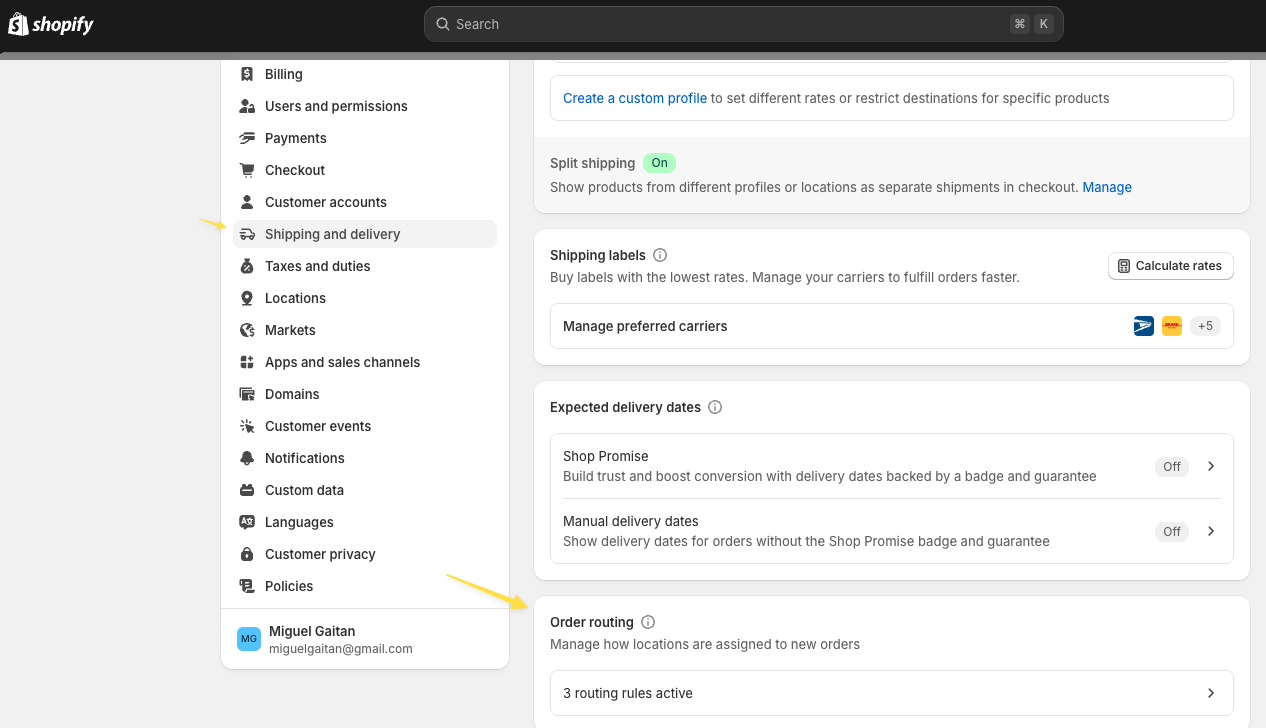
Step 1: You need to go to Settings: -> Shipping and delivery and click on Order routing:
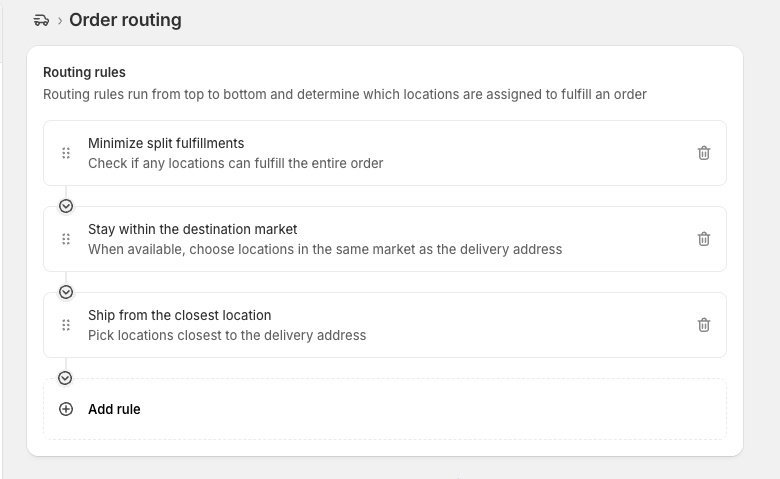
Step 2: This is how it looks if it's on default settings:
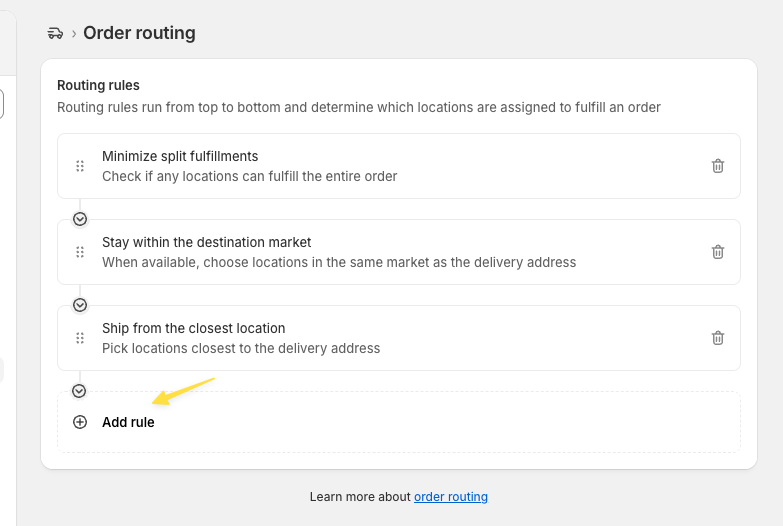
Step 3: Click on Add Rule:
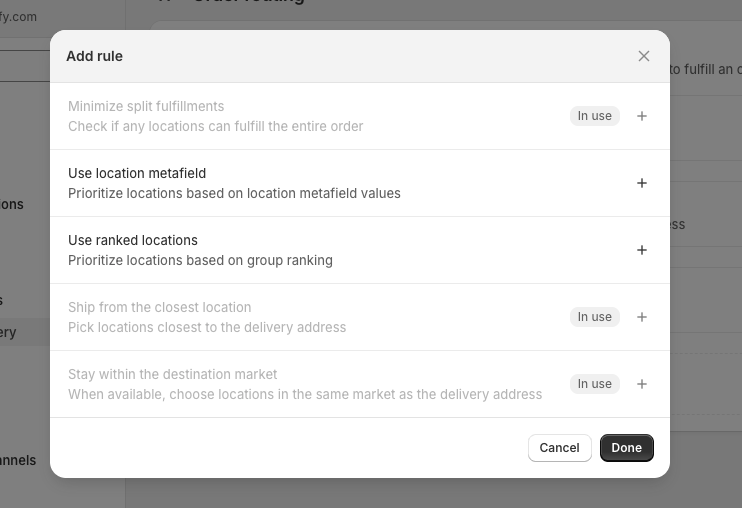
Step 4: Select ranked locations:
Step 5: Create a new location group to contain the 3rd Party Locations:
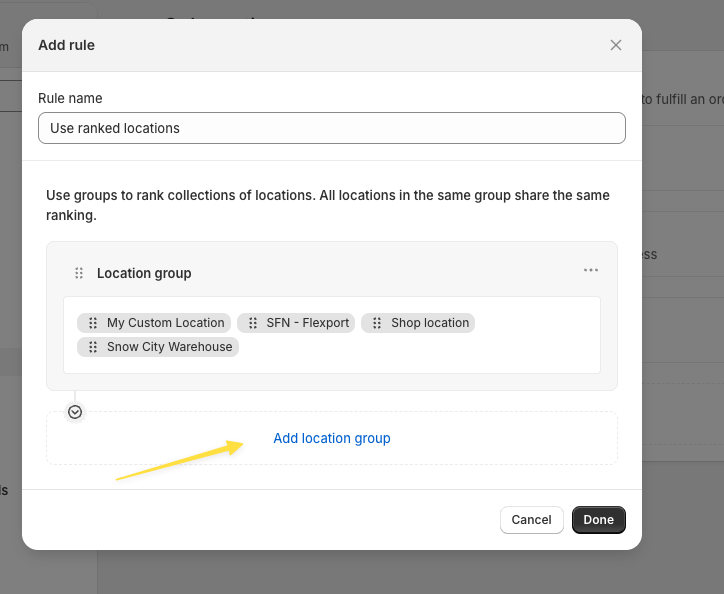
Step 6: Move the 3rd party locations to the new location group and click done:
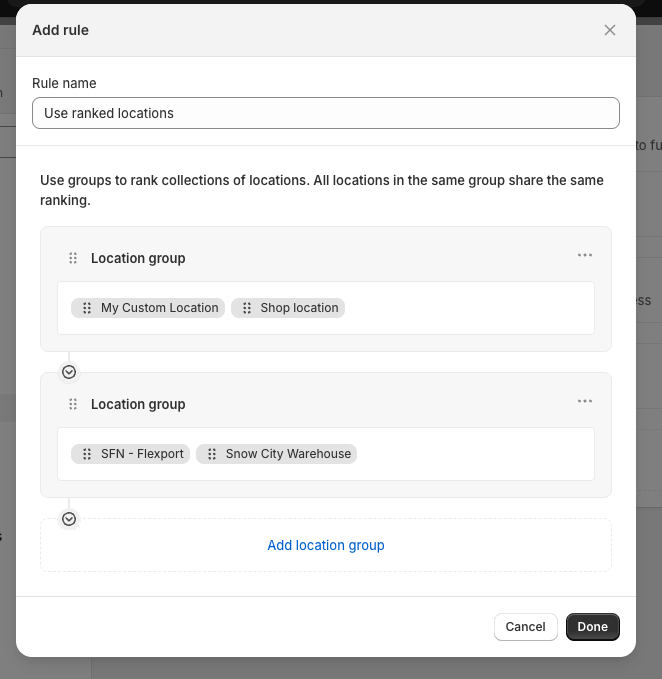
Step 7: Move the new rule to be the second priority:
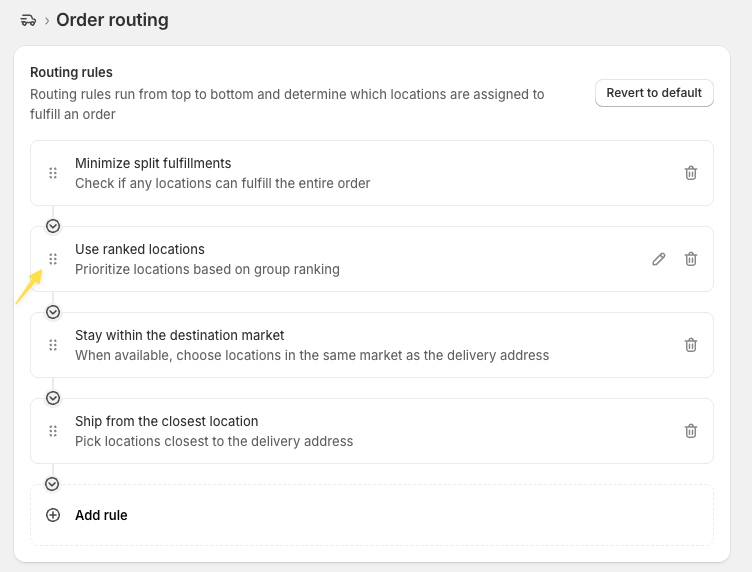
Step 8: Then click save:
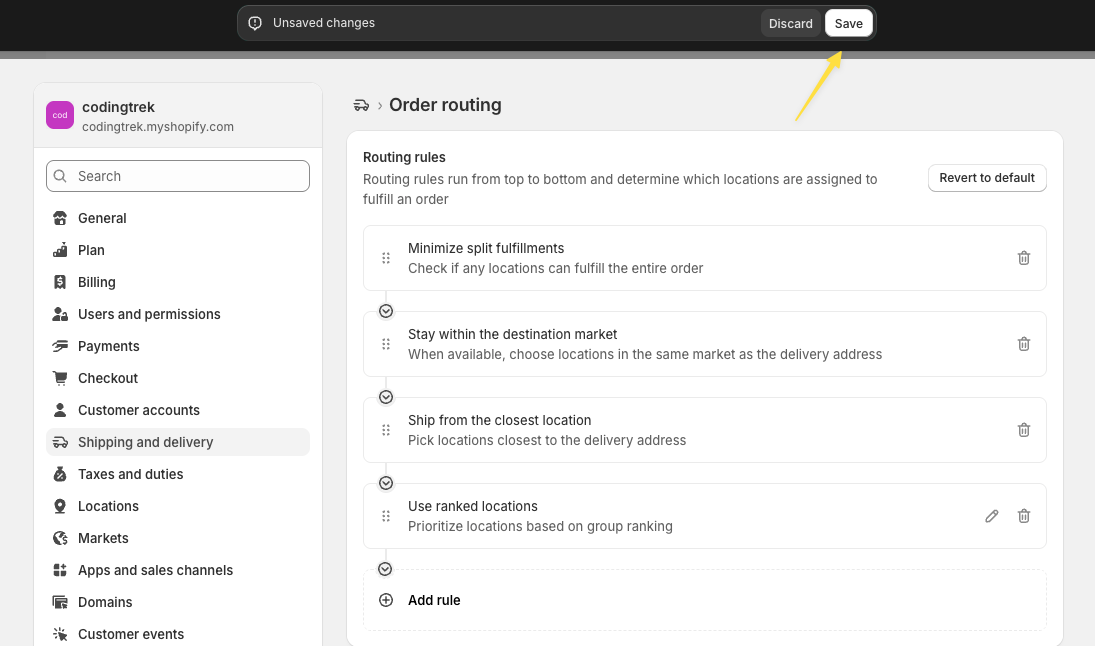
Step 9:
That's it! Now your orders should be routed first to Shiphero if the inventory is available and it's the closest location to the destination address and to the 3rd Party if it's not.