
Follow these steps to connect your Shopify store for the first time:
Open the My Account > Stores page and click the Add A New Store button.
Select Shopify from the available options.
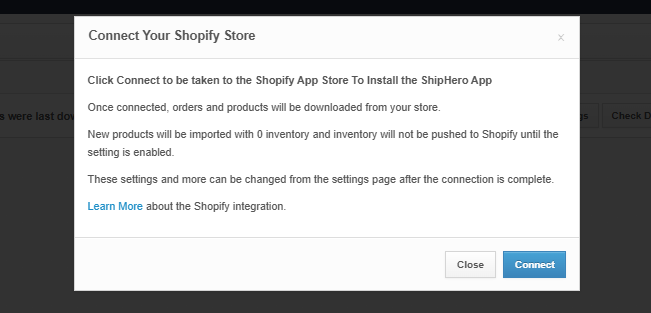
An informational screen will pop up outlining the steps to connect your Shopify store with ShipHero. When you click Connect, you will be taken to the Shopify App Store to install the ShipHero App.
Once connected, click on the Settings button to configure the connection.
The process to connect any other sales channel (Woocommerce, BigCommerce etc.) is relatively similar to connecting Shopify.
How to Re-Authenticate Your Shopify / ShipHero Connection
Open the My Account > Stores page and click the Settings button.
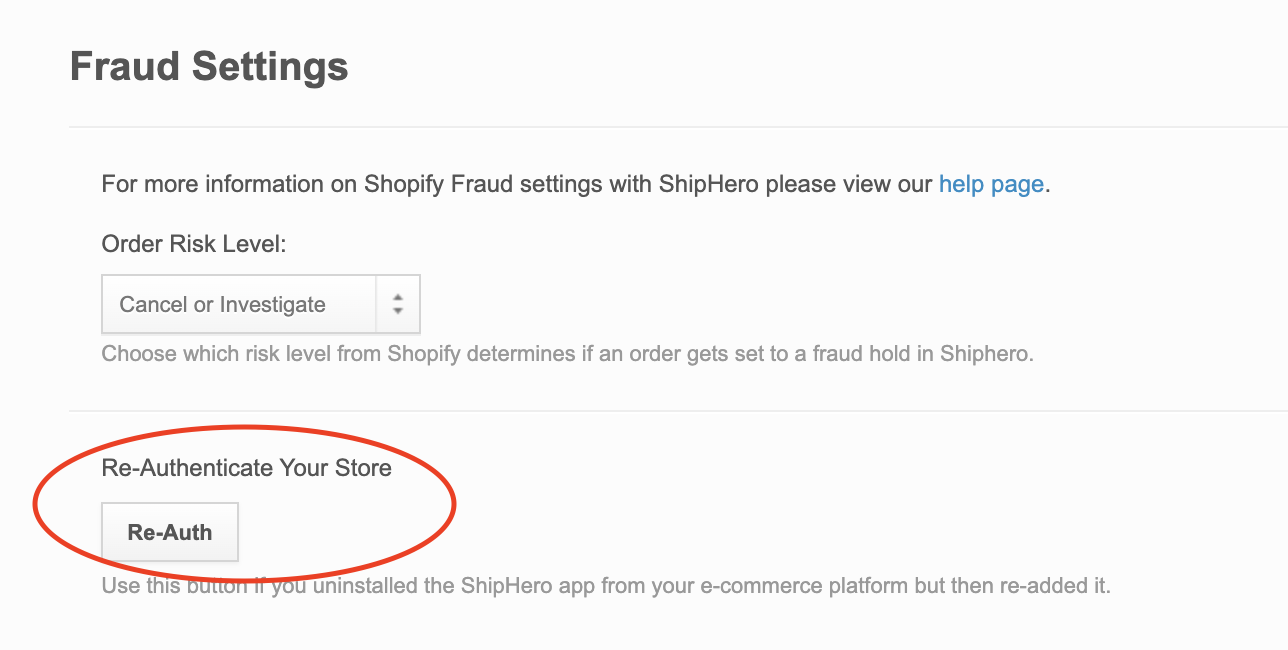
Scroll to the Re-Authenticate Your Store section, on the bottom left of the page and click the Re-Auth button.
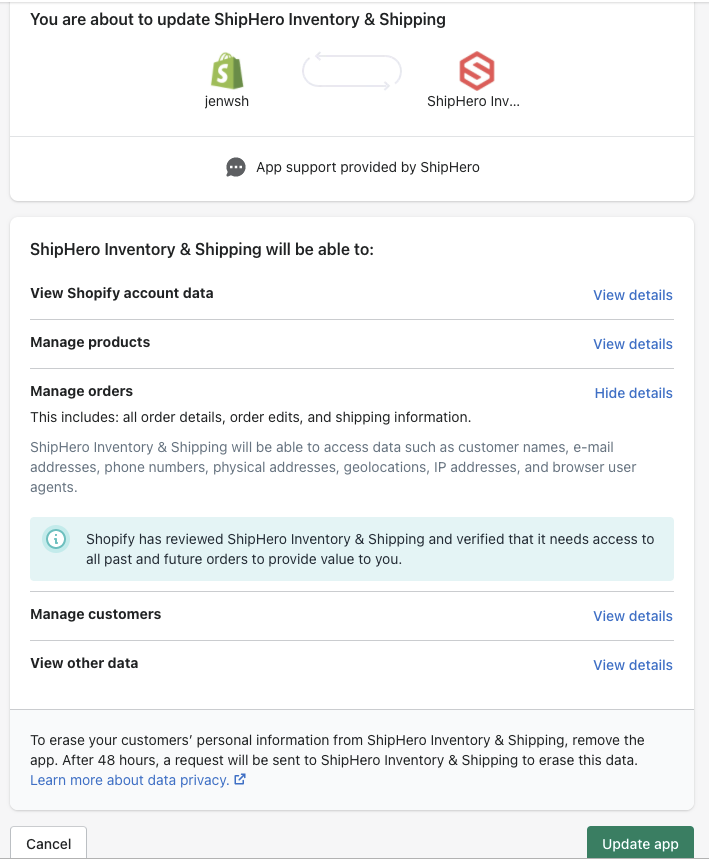
You will be redirected to log into your Shopify store and will see a message titled: "You are about to update ShipHero Inventory & Shipping."
Click Update app.
Once connected, ShipHero will begin to import your products and orders. Next, it's time to create your first Purchase Order!