Assigning products to vendors allows you to quickly generate Purchase Orders for product replenishment. This article will walk you through how to assign a single product to a vendor and how to assign multiple products to a vendor(s).
Assign Single Product to Vendors
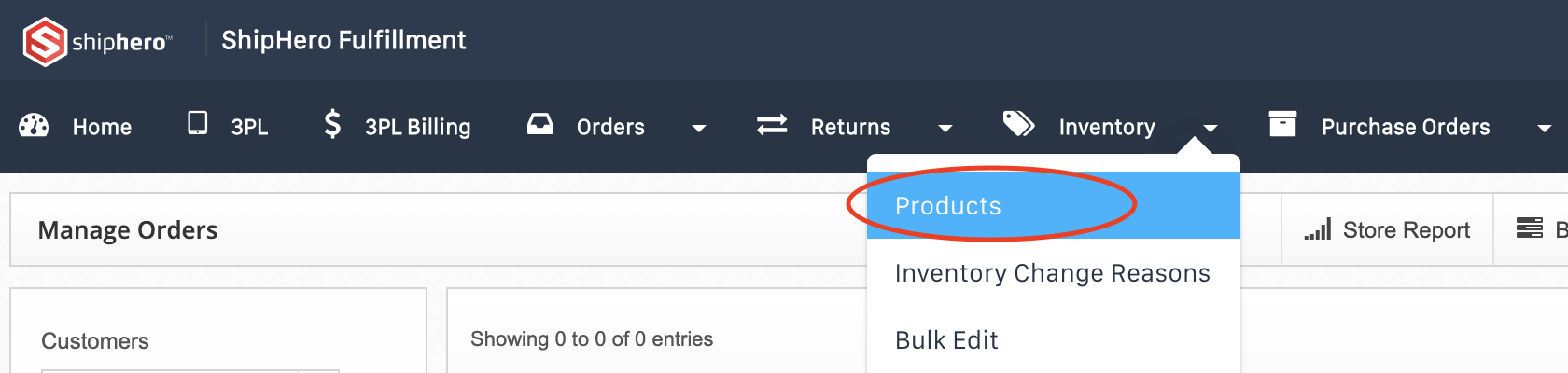
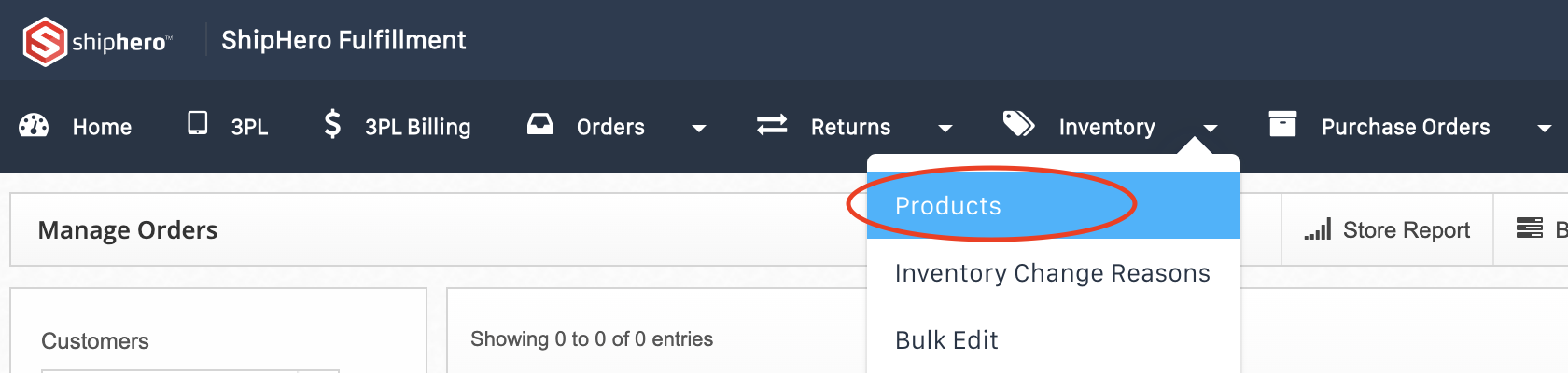
1. Once you have logged into ShipHero, go to Inventory > Products.
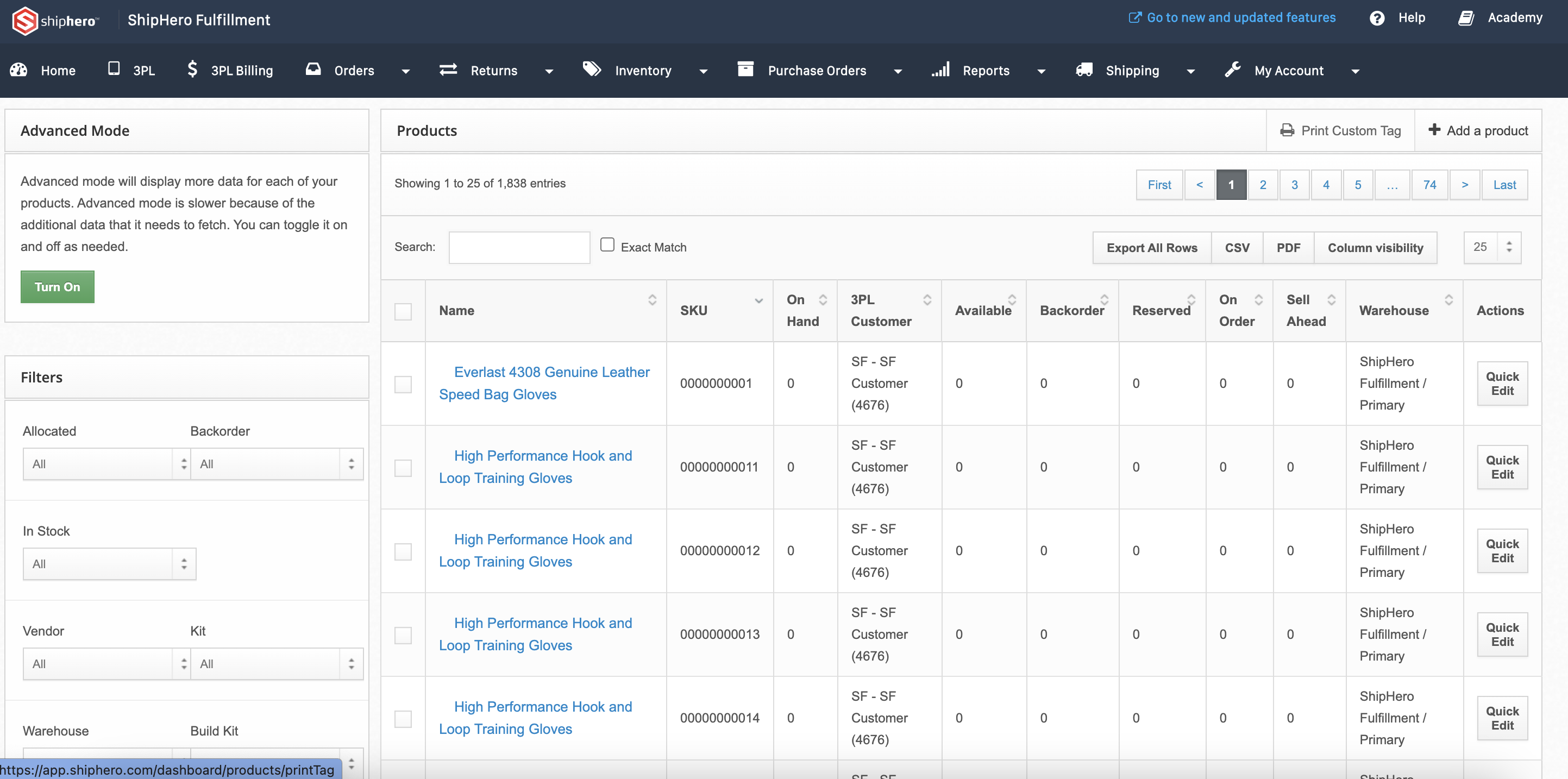
2. On the Products page, find the product listing that you would like to assign a vendor to. Click on that product name.
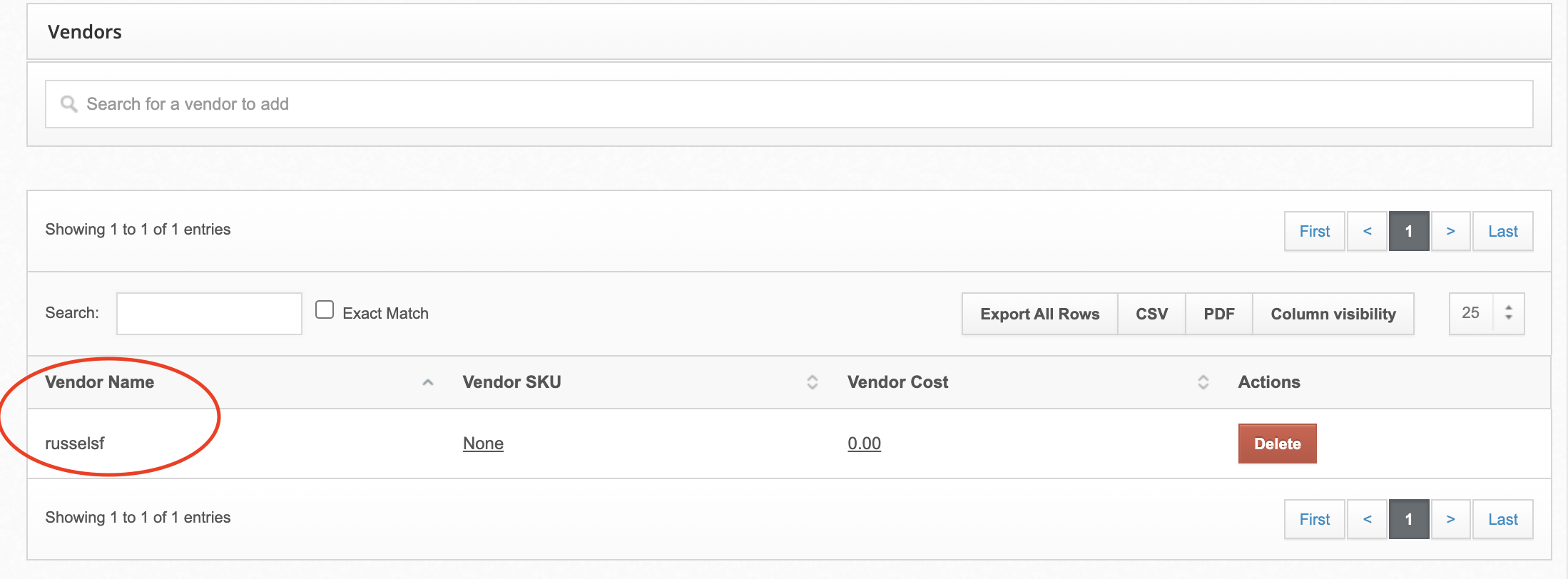
3. On the product listing page, scroll down to the Vendors section.
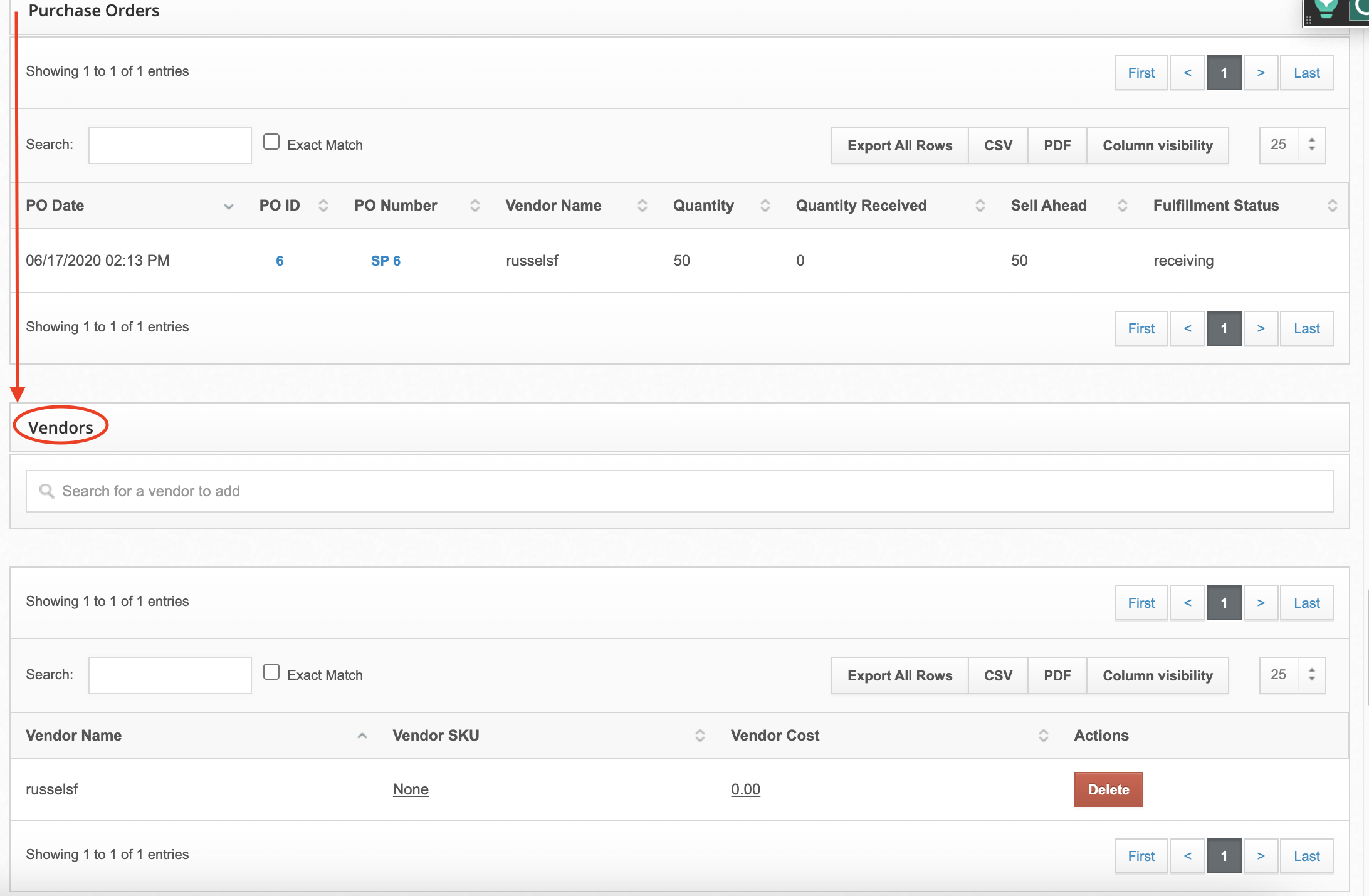
4. In the search box, begin typing the Vendor's name as it has been entered. The name should auto-populate.
5. Hit Enter, and the vendor name will now be present in the Assigned Vendors table below.
Assign Multiple Products to Vendor(s)
You can update many products at once either in the ShipHero interface.
Update Products & Vendors
1. Once you have logged into ShipHero, go to Inventory > Products.
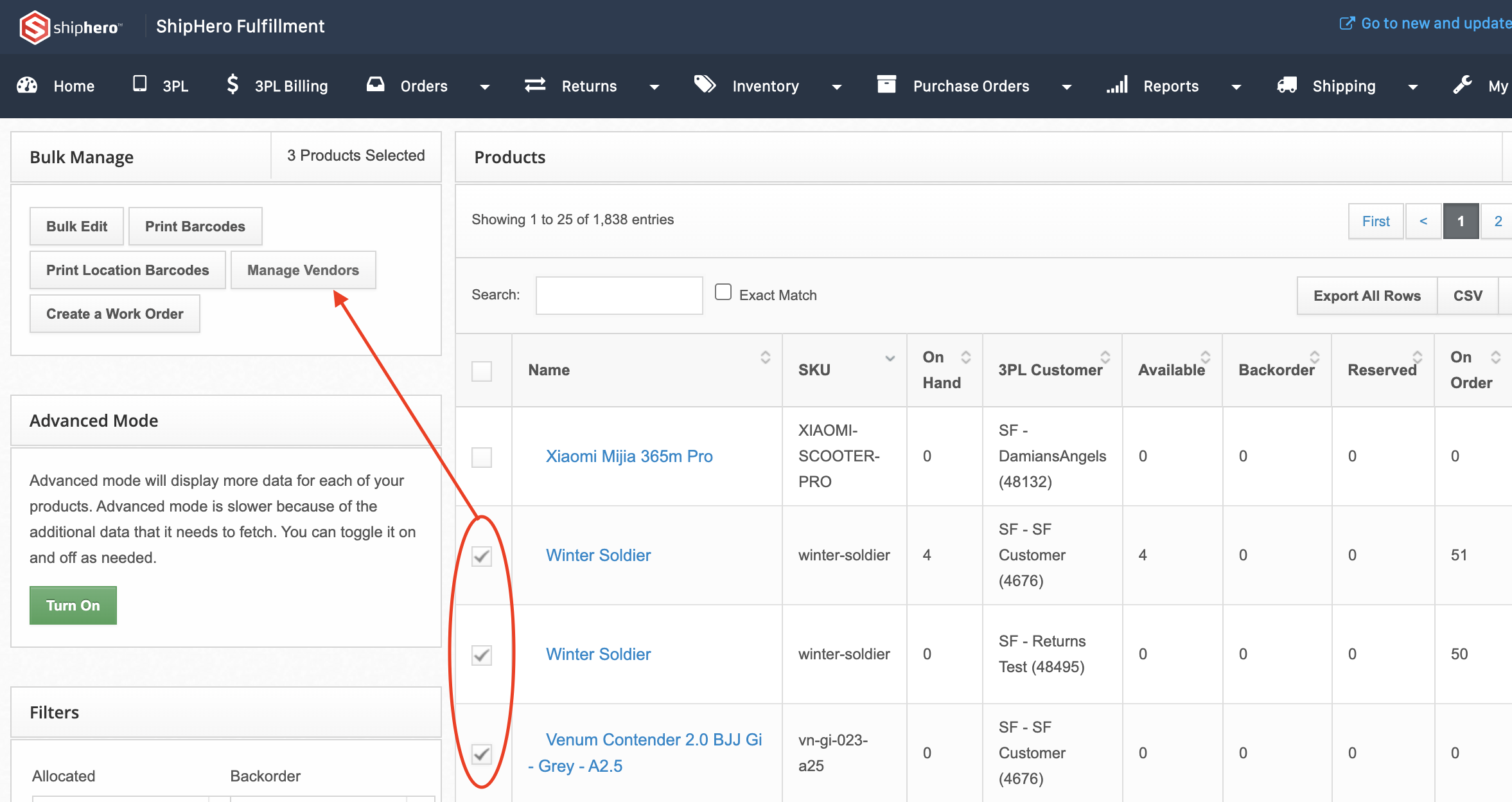
2. Select multiple products by selecting them in the checkbox column.
3. Once you have selected the products you need to assign a vendor to, click Manage Vendors at the top left-hand side of the Products page.
4. In the pop-up window, choose your vendor from the dropdown menu. You have the option to add or remove that vendor from your selected products.
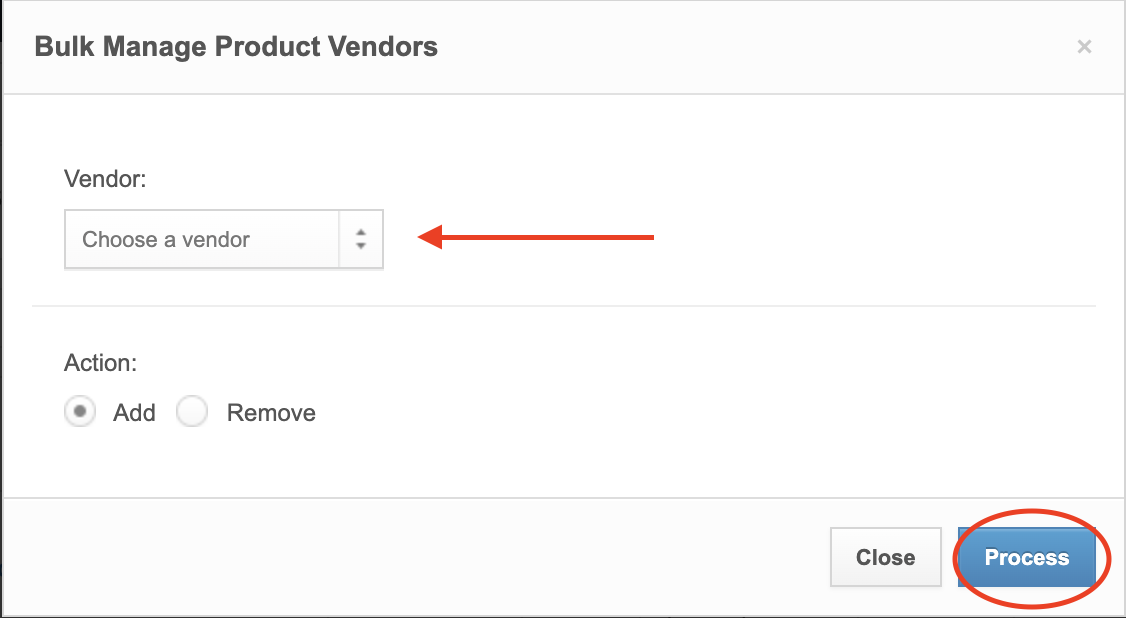
5. Click Process.
Update Products & Vendors via CSV
You can also upload a single CSV with products and assigned vendors:
1. On the top menu, go to the Purchase Orders > Vendors
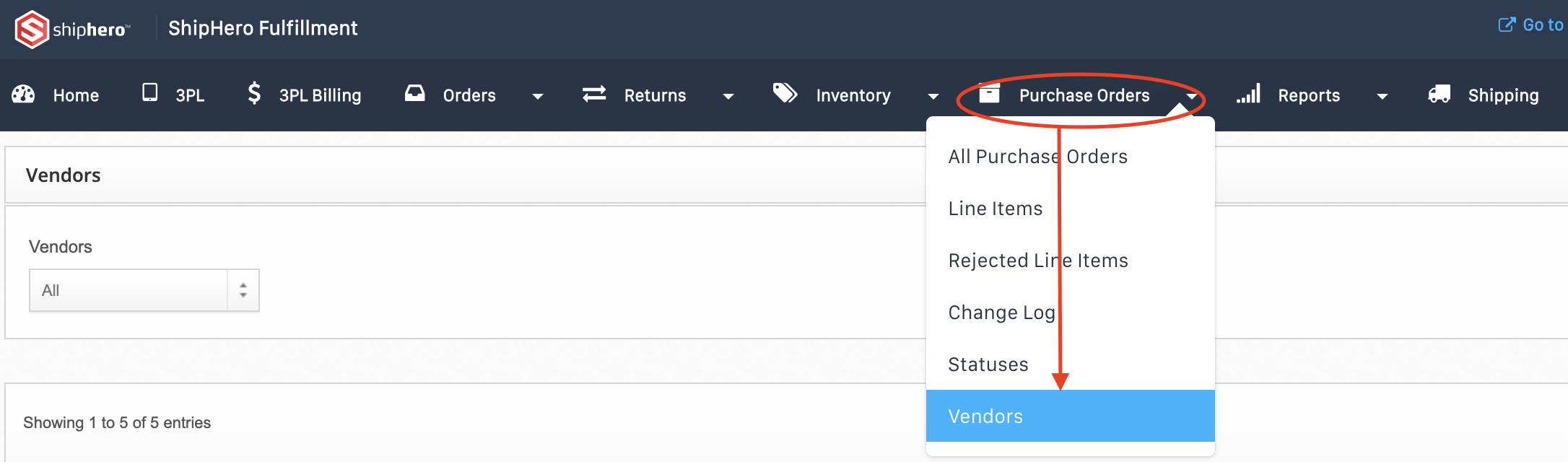
2. Click the Upload CSV button located on the top right-hand of the dashboard.

3. Follow the instructions on the Download Vendor Products page to create your CSV.
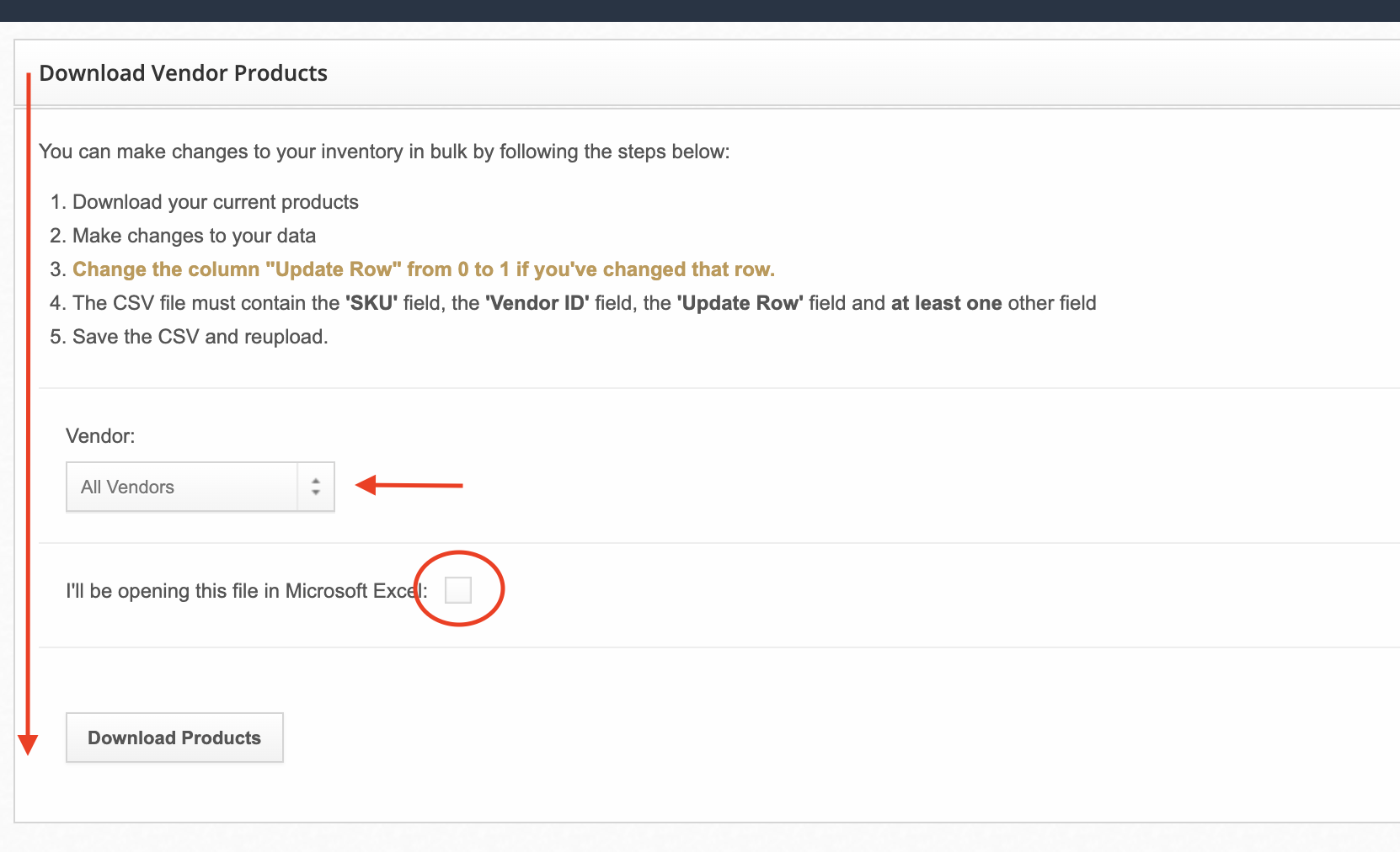
4. At the bottom of the page, under Upload Vendor Products CSV file, choose your CSV file and click on Upload.

How to Add or Edit Vendors
You can easily add, edit and delete vendors from ShipHero.
How to Add a Vendor
1. Once you've logged in, go to Purchase Orders > Vendors.
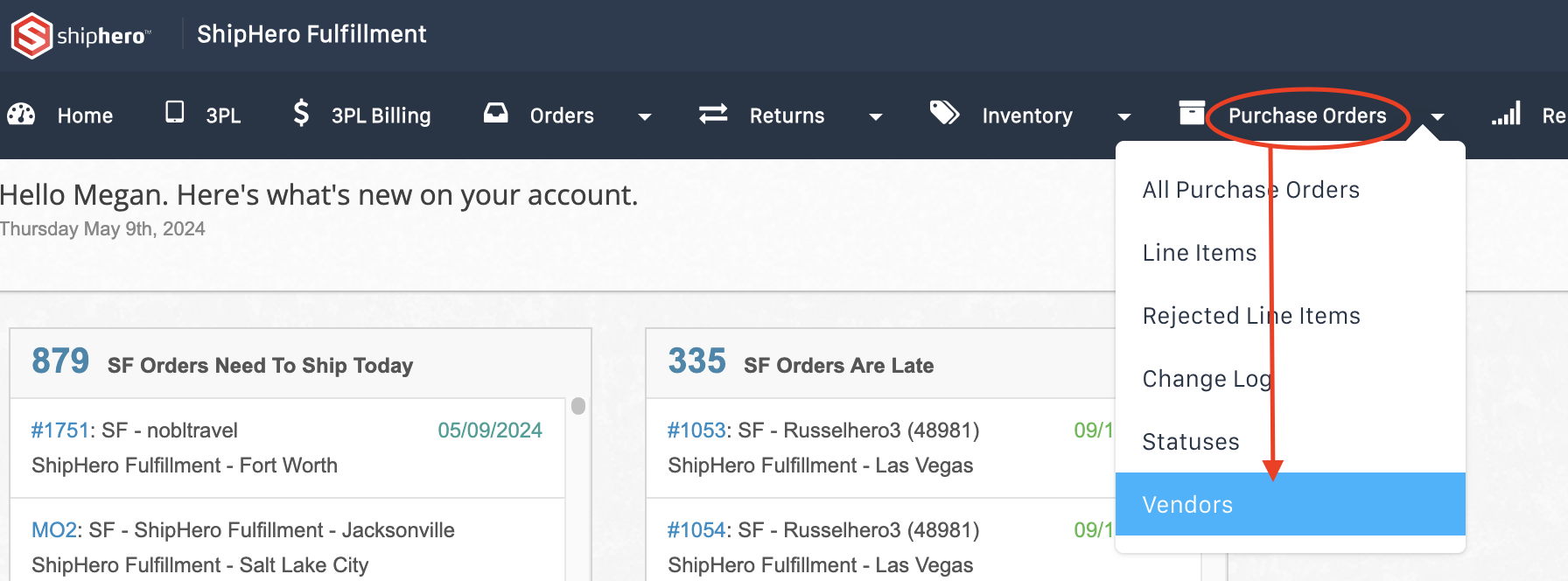
2. At the top right-hand side of the screen, click the Add Vendor button.

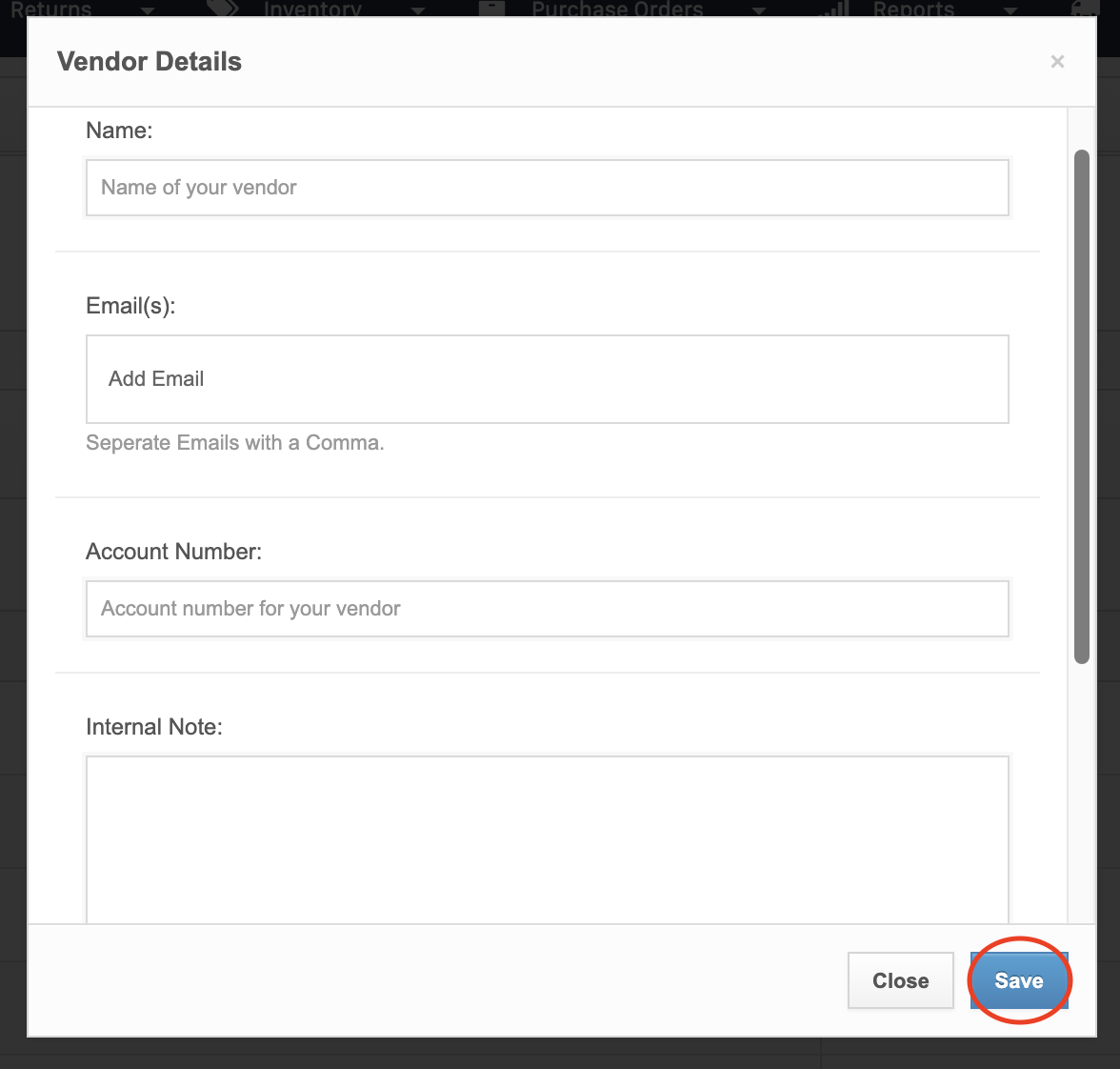
3. A dialog box will pop-up. Fill out all of the fields. Click Save.
How to Edit a Vendor
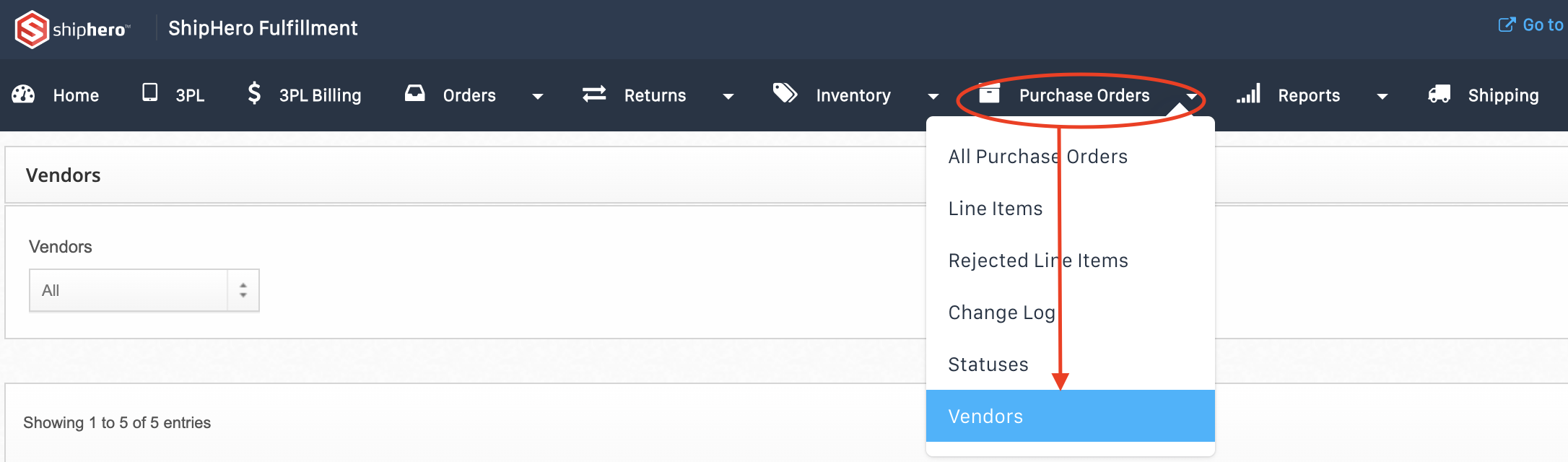
1. Once you've logged in, go to Purchase Orders > Vendors.
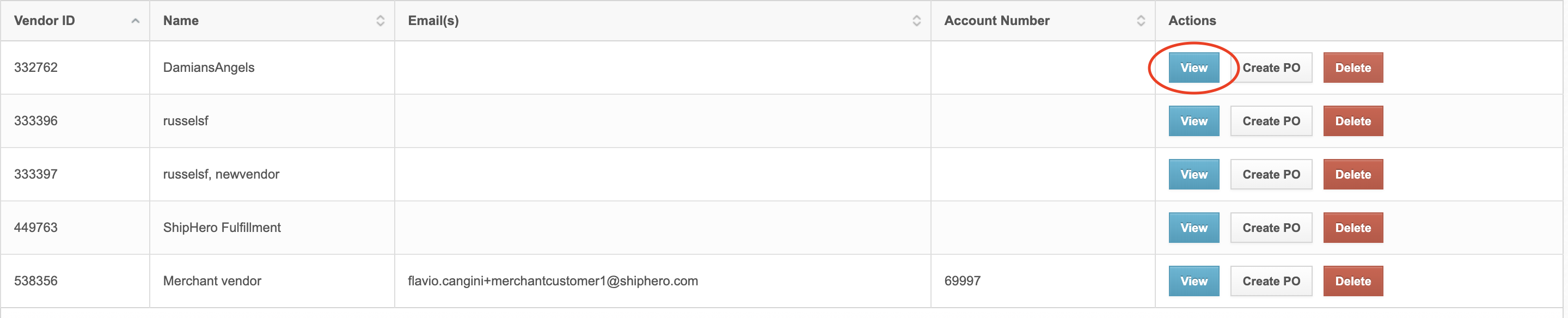
2. Scroll down to the vendor list. On the right hand side of each vendor listing, you will see buttons to View, Create PO & Delete. Click View.
3. On the Vendor screen, you will see the current vendor information. On the left hand side, under the Details heading, there are fields where you can make changes. Make changes here.
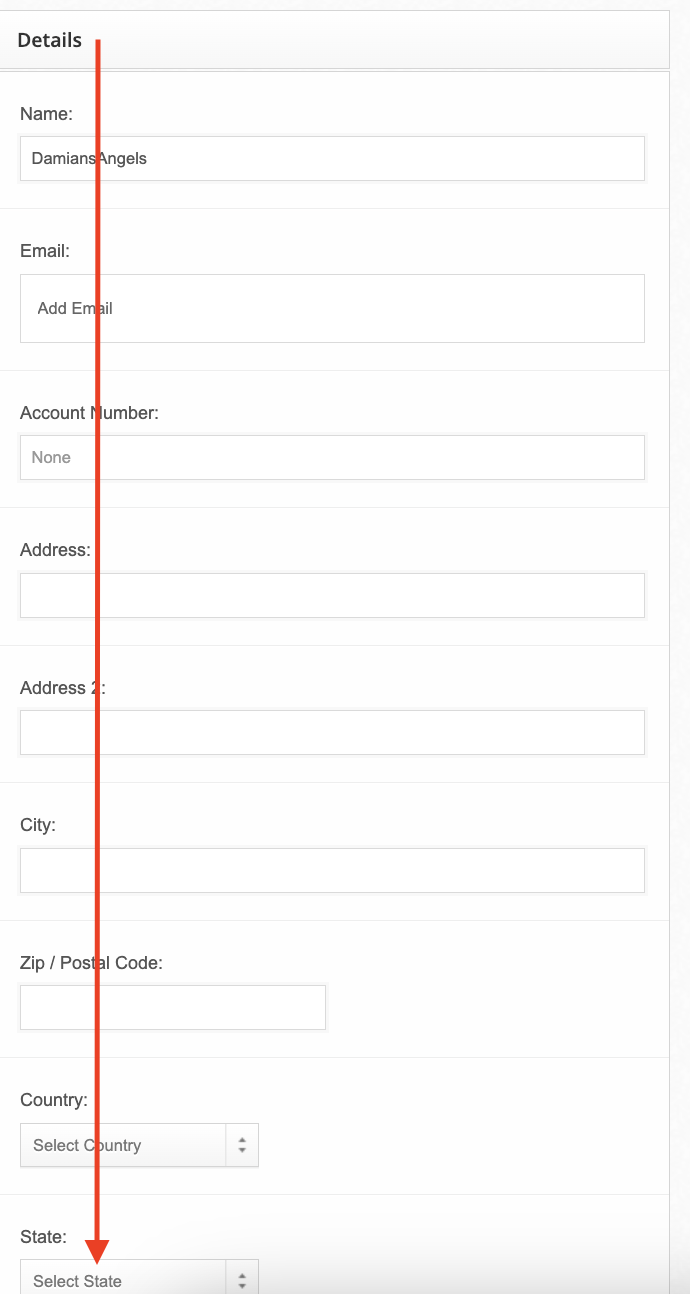
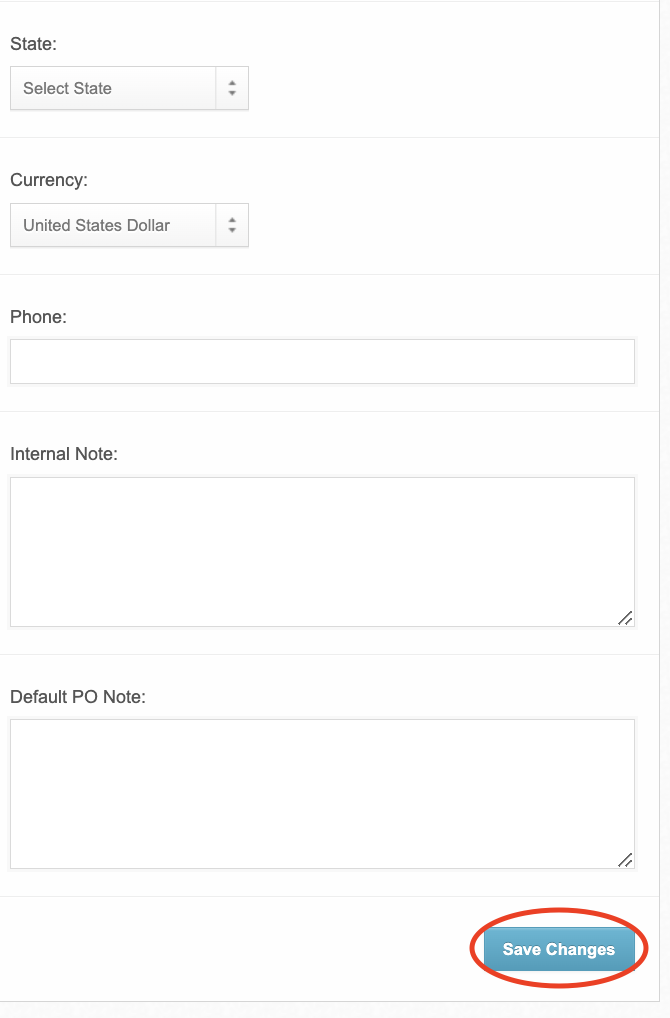
4. Once changes are made click Save at the bottom of the screen.