
The Shipment Report measures the volume of shipments made within our WMS. You can use this report to view the number of shipments and use a variety of filters to get the information you need quickly. This article will walk you through the look of the report, where to find it in our WMS, what the report details, how to filter the report and export it.
Shipment Report Overview
The Shipment report provides you with a list of shipments generated within our system. The report can be filtered to give you the most relevant information for you and your team.
Available Filters
Created Date
Shipping Carrier
Store
Warehouse
Label Status
Profile
Packer
Platform
Drop-shipments
Tags
Lot Code
Lot Expiration Date
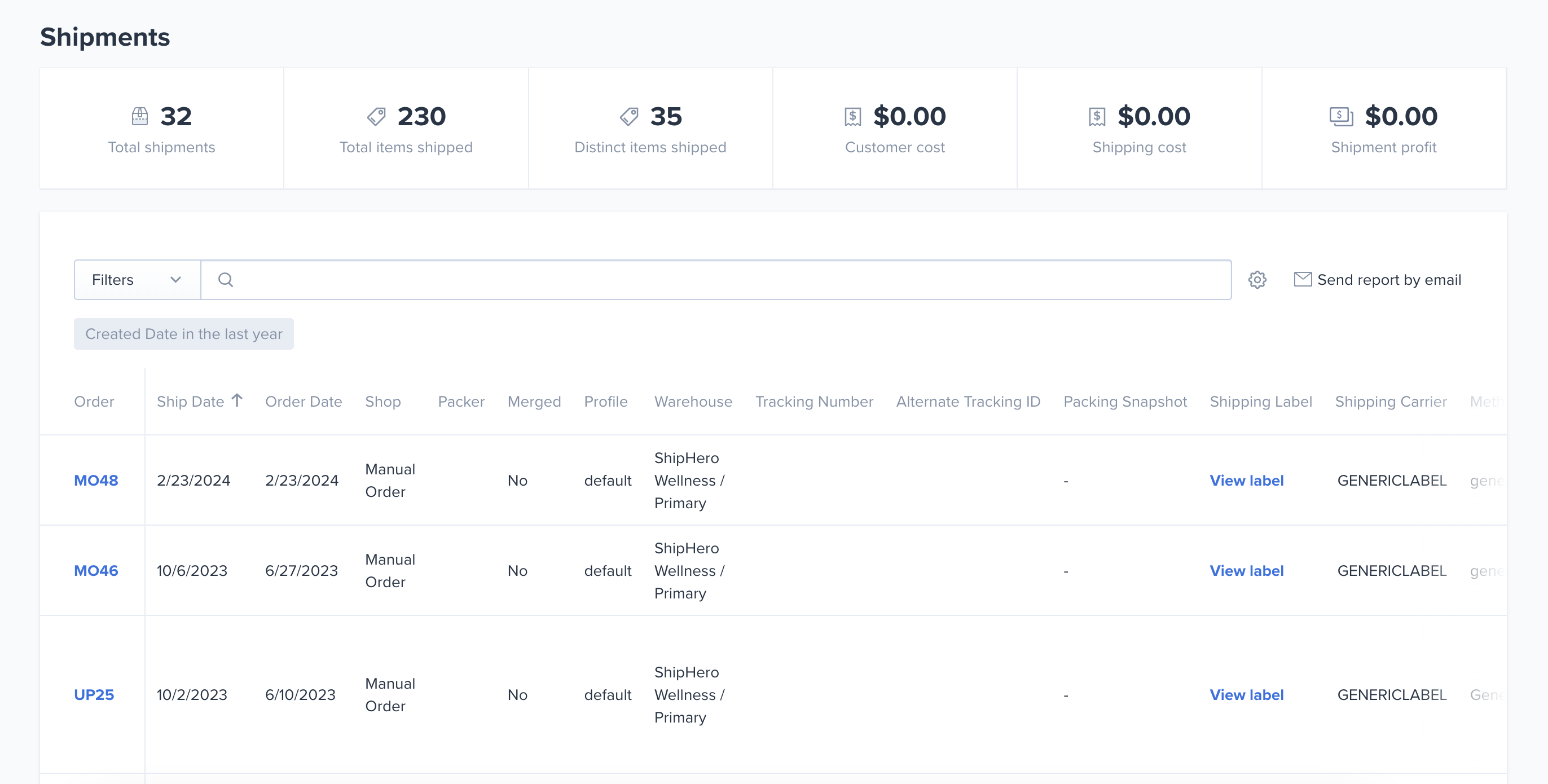
Shipment Report Dashboard View
Total Shipments: The number of labels generated during the specified time period. For multi-package orders each label is listed separately.
Total Items Shipped: Total number of items that were shipped from the warehouse during the requested dates.
Distinct Items Shipped: Total number of unique items shipped during the requested dates. For example, if an order contains 3 orders of the exact same color and sized t-shirt, that shipment will have 1 Distinct Items Shipped.
Shipping Cost: Cost of the labels that were generated through ShipHero during the requested dates.
How to Access the Shipment Report
1. Login to ShipHero and navigate to Reports > Shipments.

2. On the main Shipments page, you will see a dashboard at the very top. If you would like to add filters to this view, navigate to the filters dropdown on the lefthand side of the screen.
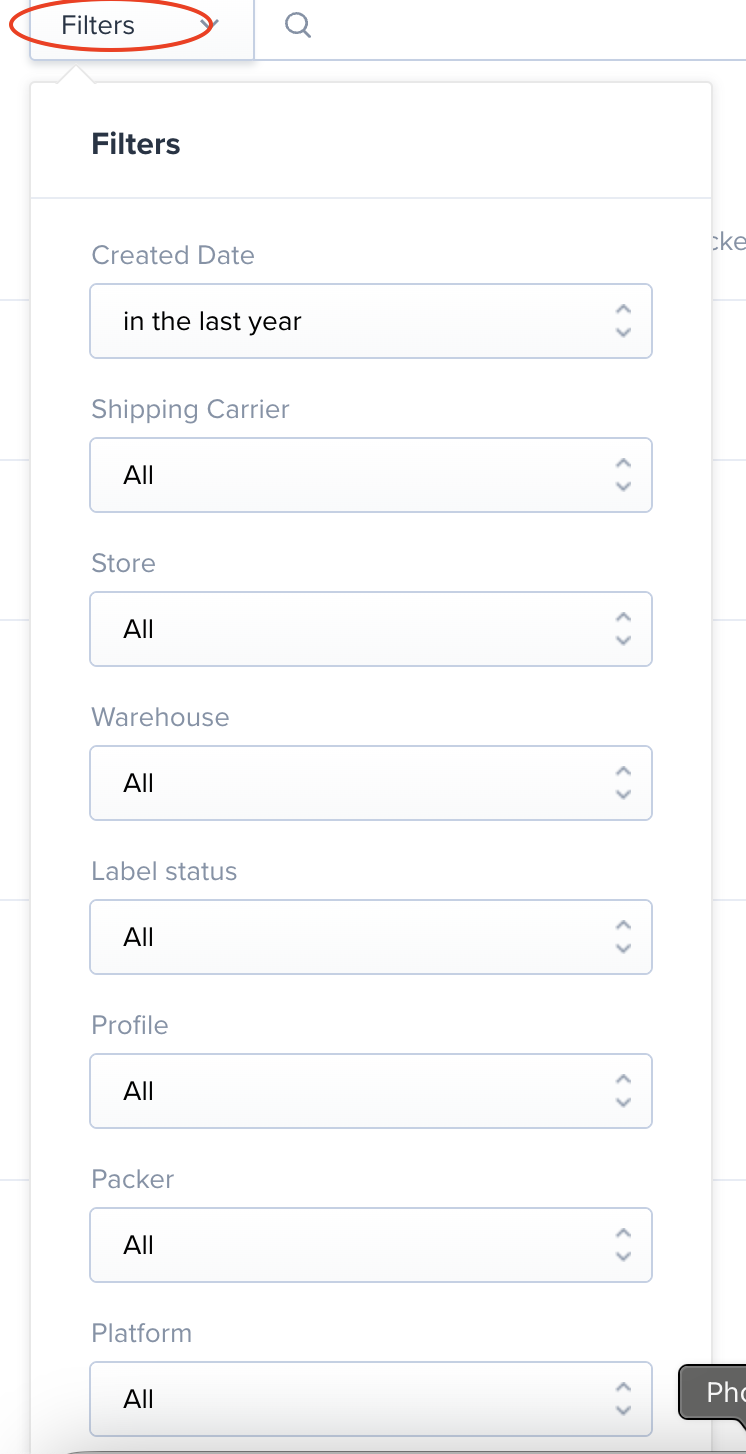
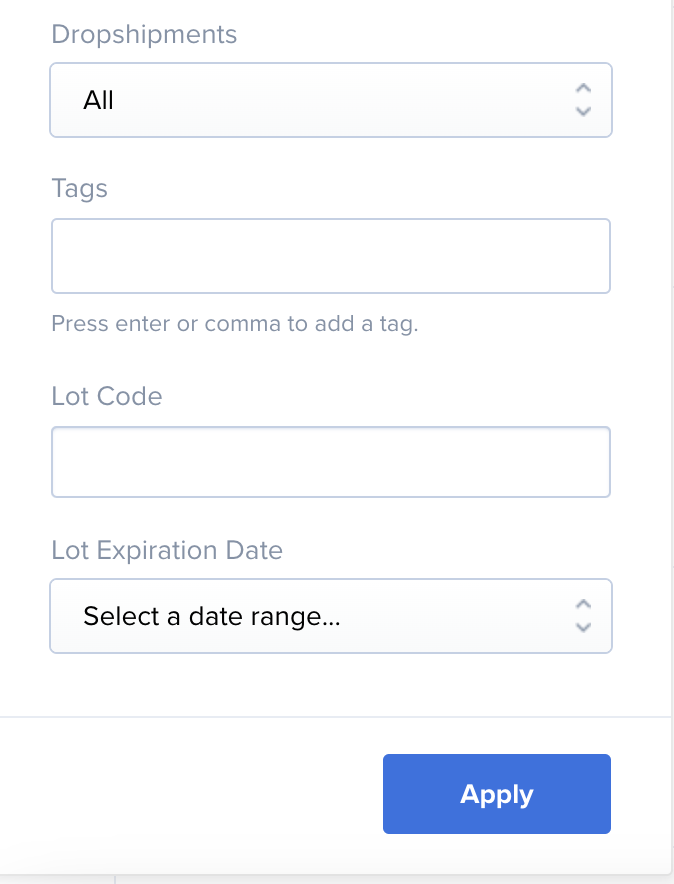
3. Select the filters you'd like to use and click Apply.
4. The report will display in the lower portion of the screen.
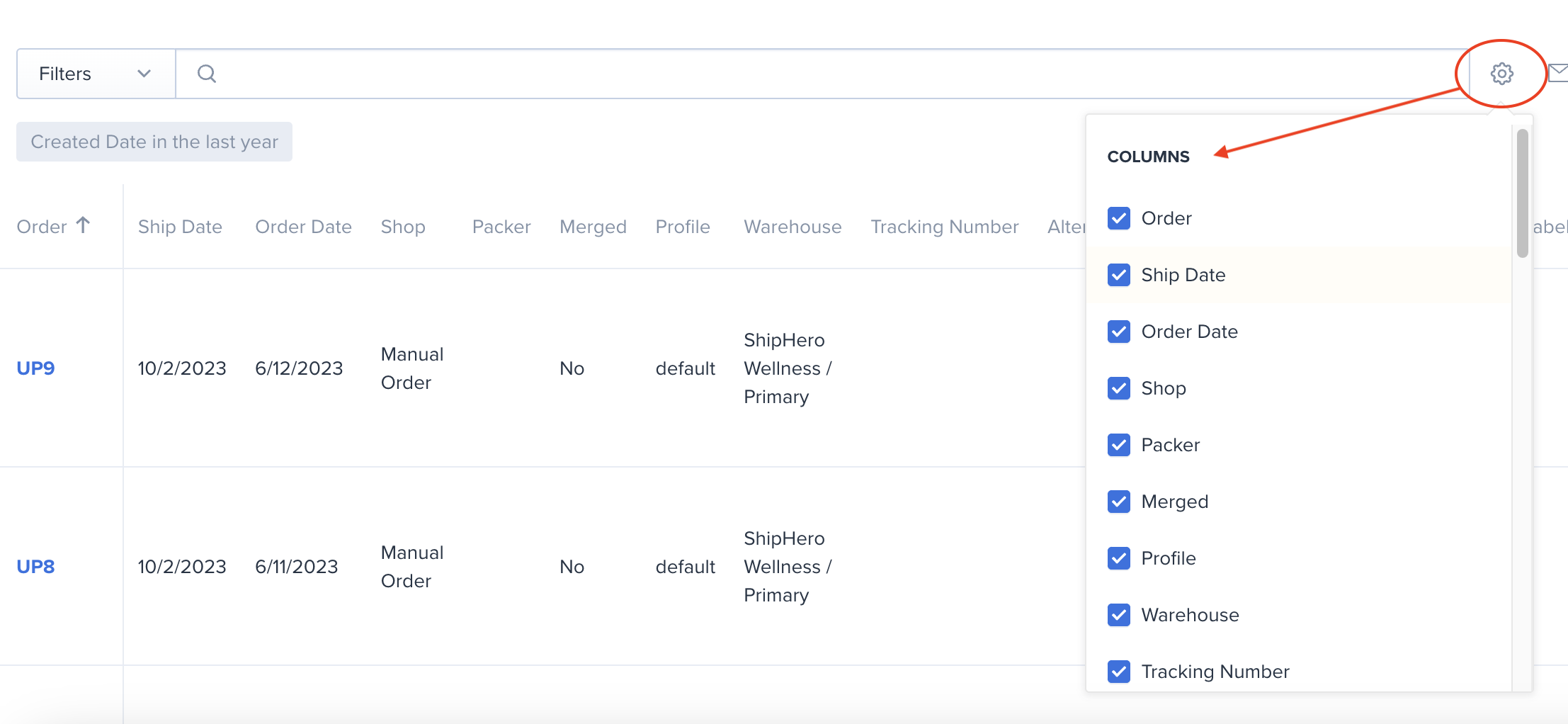
5. If you would like to remove or adjust the columns in this view, click on the gear icon to the right hand side of the Search bar. A list will dropdown that will allow you to select the columns you would like to see.
6. To export your Shipment Report, click on Send report by email on the far righthand side of the screen. When the report is ready to download, you will receive an email with a link to access the report.