
By default, 247 Fulfillment automatically assigns orders to the optimal warehouse based on:
Predefined rules based on your shipping profile determined during onboarding
Distance to the customer and available fulfillable inventory.
This ensures the fastest and most cost-effective shipping.
However, in certain cases—such as stock availability or operational preferences—you may want to manually override the warehouse assignment for a specific order.
This article explains how to force an order to ship from a specific warehouse using order tags.
Before You Start
To manually assign orders to a warehouse, Multi-Warehouse Allocation must be enabled on your account.
If you are already shipping orders from multiple warehouses, this feature is already enabled
If you are unsure whether it’s enabled, please contact the 247 Fulfillment team
How Warehouse Forcing Works
Warehouse overrides are done using order tags.
Once the correct tag is added and the order is reprocessed, the system will reallocate the order to the specified warehouse—provided sufficient inventory is available at that location.
Choosing A Warehouse When Creating An Order
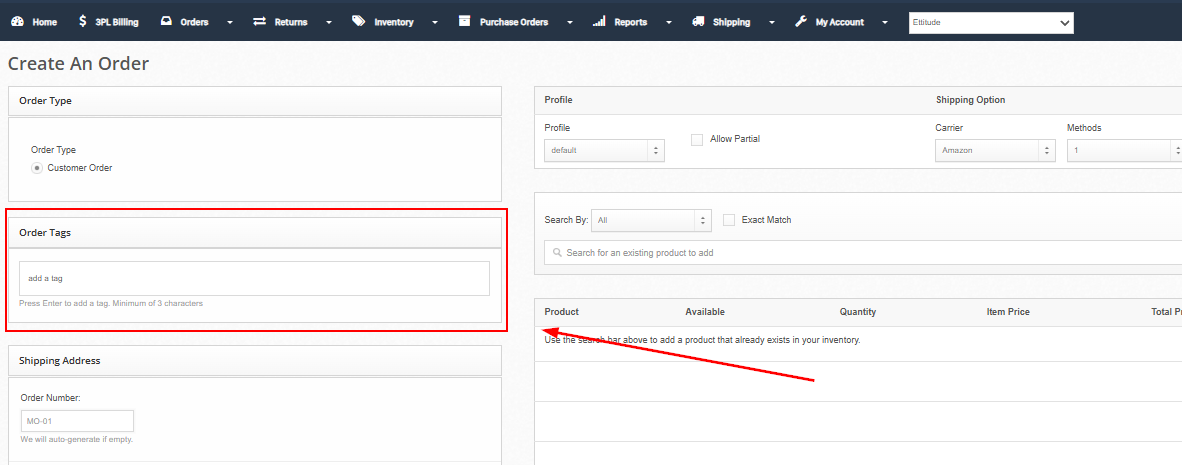
For standard customer, manual, or wholesale orders that must ship from a specific warehouse, add the corresponding FORCE tag in Order Tags before saving. The tag reference is listed below.
Enter the tag exactly as shown in the Order Tags field and press Enter to add it before clicking Save Order. Apply only one FORCE tag per order.
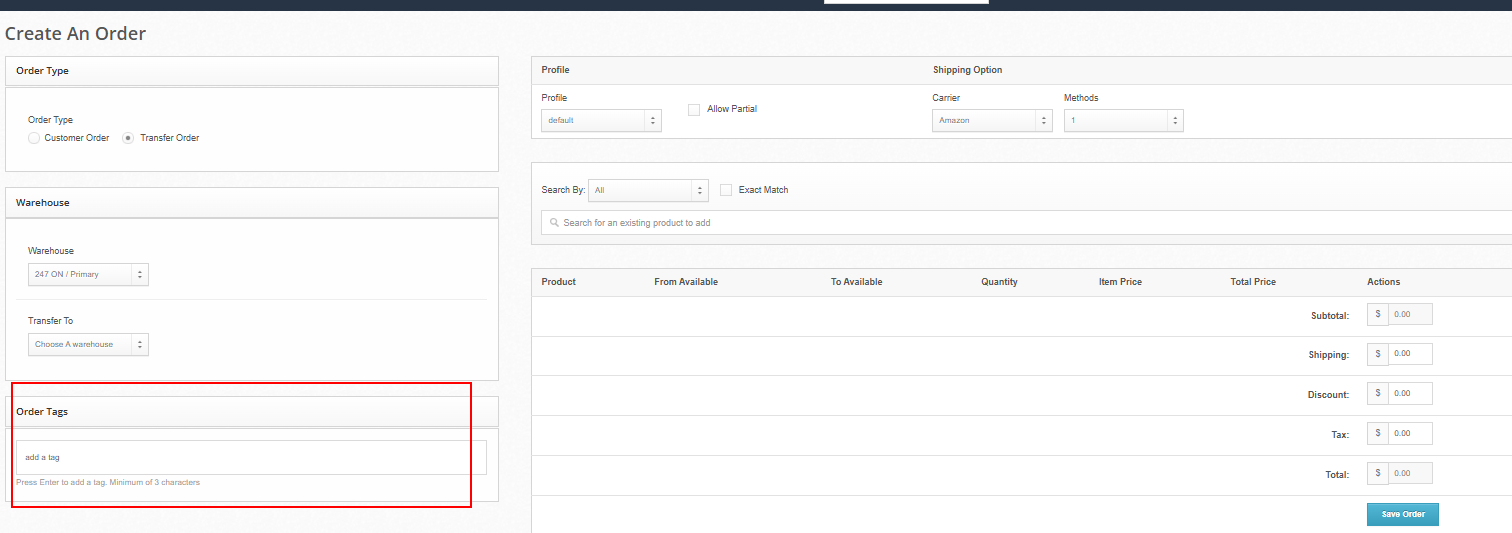
For transfer orders, you must add the FORCE tag matching the Warehouse you are transferring inventory from.
The tag selects the origin warehouse the order ships from, not the destination warehouse. For example, a transfer from Ontario to BC requires FORCE-ON, with BC selected under Transfer To.
Step-by-Step: Reassigning An Existing Order
1. Open the Order
Navigate to the order you would like to reassign within your order management system.
2. Add the Appropriate Order Tag
Add one of the following tags based on the origin warehouse you want the order to ship from:
Origin Warehouse (Ships From) | Order Tag |
|---|---|
247 ON — Ontario | FORCE-ON |
247 UT — Utah | FORCE-UT |
247 FL — Florida | FORCE-FL |
247 BC — British Columbia | FORCE-BC |
247 OH — Ohio | FORCE-OH |
After typing the tag:
Press Enter (This should form a Green Box around the tag)
Click "Save Tag"
The page should refresh
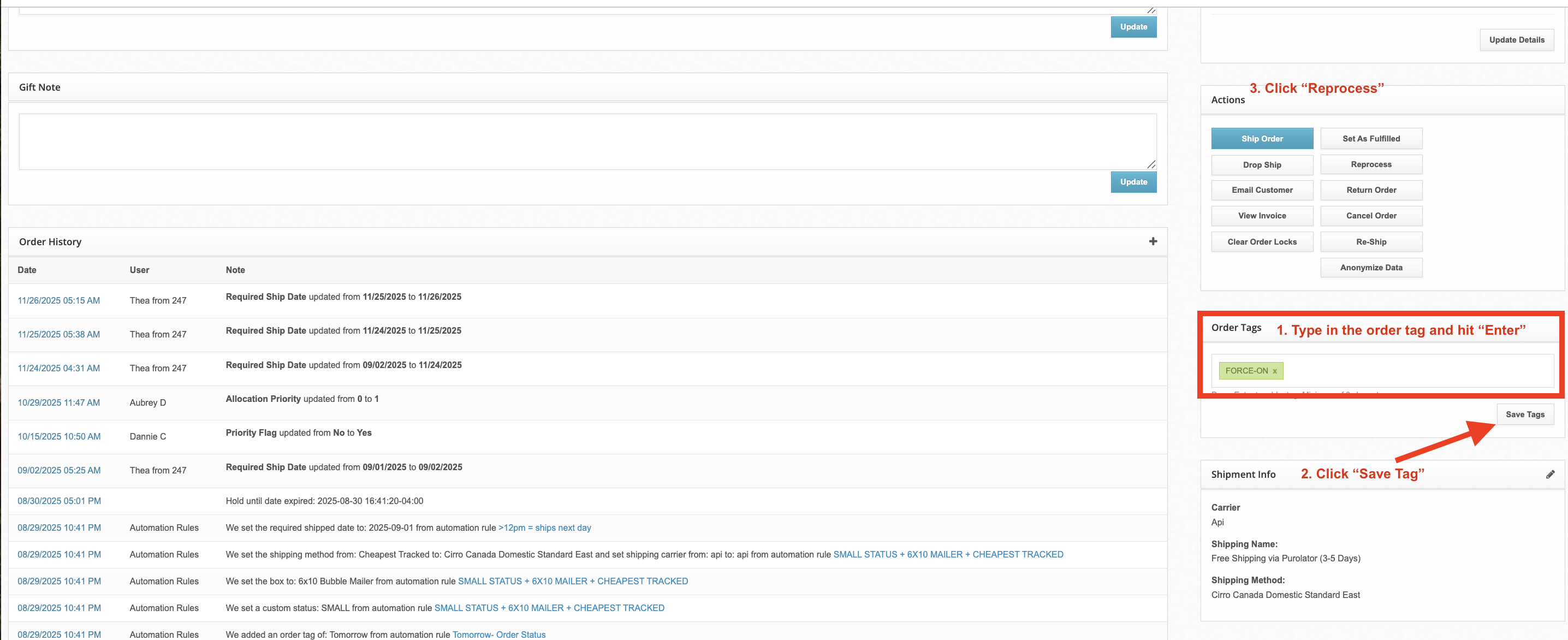
3. Click On 'Reprocess'
Reprocess the order to trigger reallocation
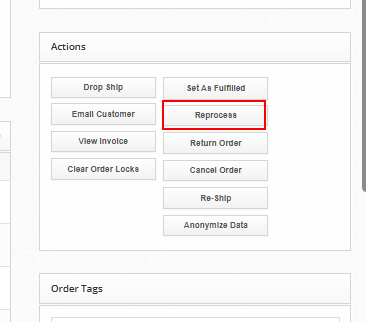
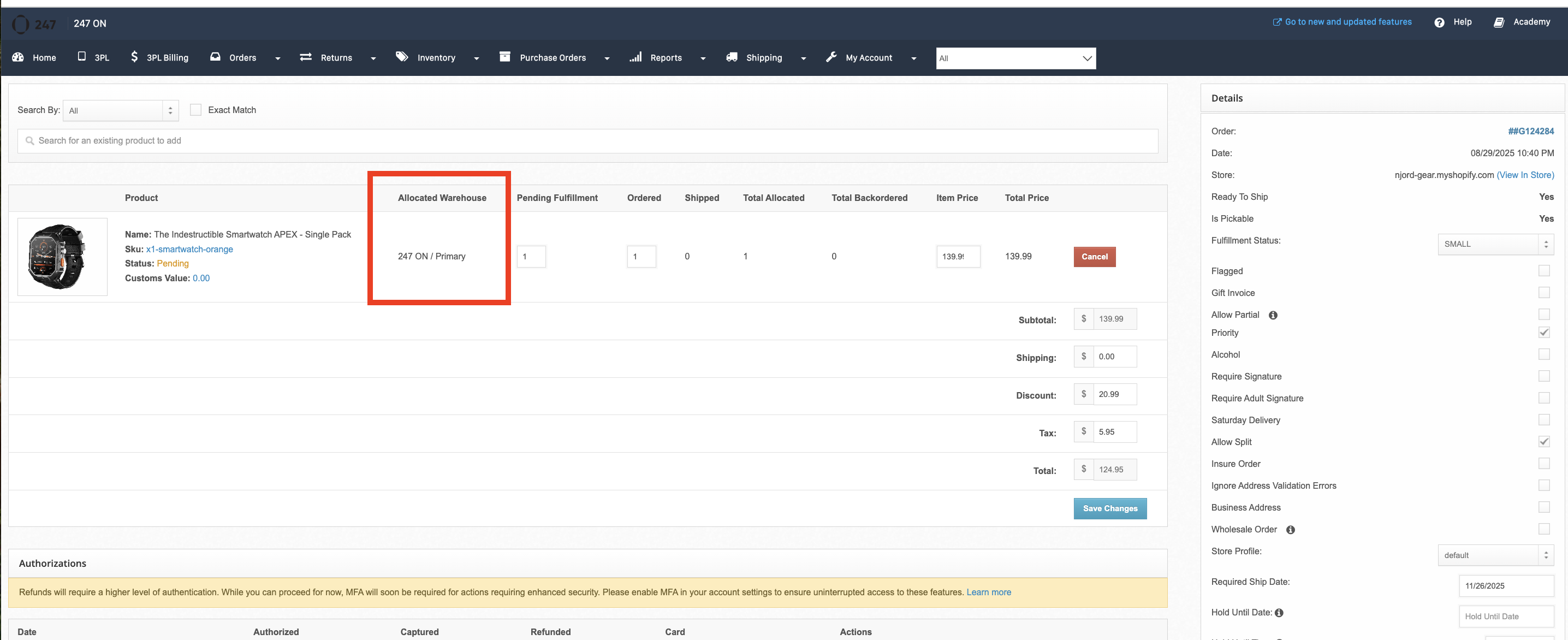
Once reprocessed, the Allocated Warehouse field on the order should update to reflect the new warehouse. You can verify this by checking the warehouse field beside each product in the order.
Common Use Cases
Resolving temporary stock mismatches
Manually controlling fulfillment during inbound delays
Testing multi-warehouse routing
Operational overrides during peak periods
Important Notes
Forced allocation will only succeed if sufficient inventory exists at the selected warehouse
If inventory is unavailable, the order may remain unallocated or fail to process
Only one FORCE tag should be applied per order
Removing the FORCE tag and reprocessing will return the order to automatic allocation
Need Help?
If you’re experiencing issues with forced allocation or need Multi-Warehouse Allocation enabled, please reach out to the 247 Fulfillment team for assistance.