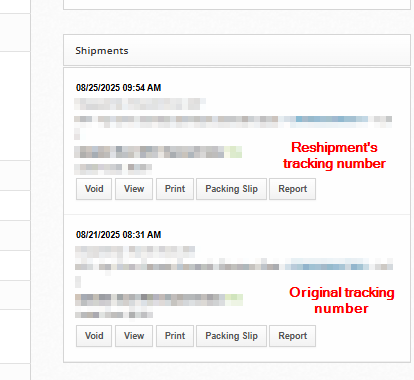
Reshipping an order is when an order with a fulfilled status needs to be reprocessed. This may occur for several reasons, including but not limited to:
A label being incorrectly printed
A product was received damaged
A package was lost in transit
A package was Returned to Sender
This article covers how to reship an order and how to keep inventory accurate throughout the process.
How to Reship an Order
Follow the steps below to reship a single order.
Go to app.shiphero.com > Orders > Manage Orders, search for the required order, and open it.
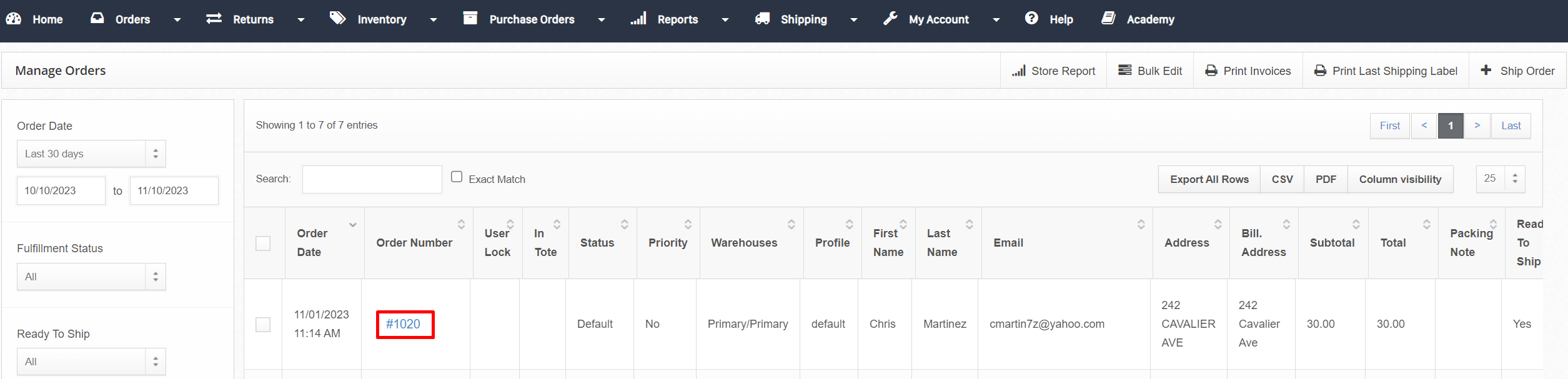
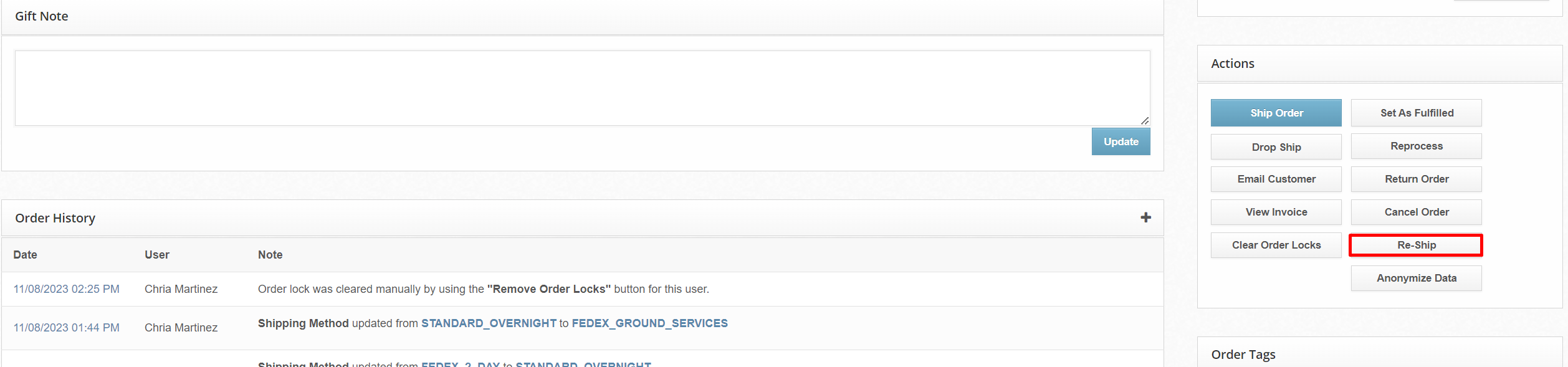
Scroll down to the Actions box and select the Re-Ship button.
Select the order status the order will be assigned when re-opened. By default, ShipHero uses the order status at the time of shipping.
Select the Checkbox next to the item(s) that need to be reshipped, adjust the Quantity Shipped. The amount entered in the Quantity Shipped is the amount that will be reprocessed. This is not always the same amount that was previously shipped or Quantity Ordered. For example, if a customer ordered 2 snow globes and one was damaged in transit, update the Quantity Shipped to 1 to replace the single item.
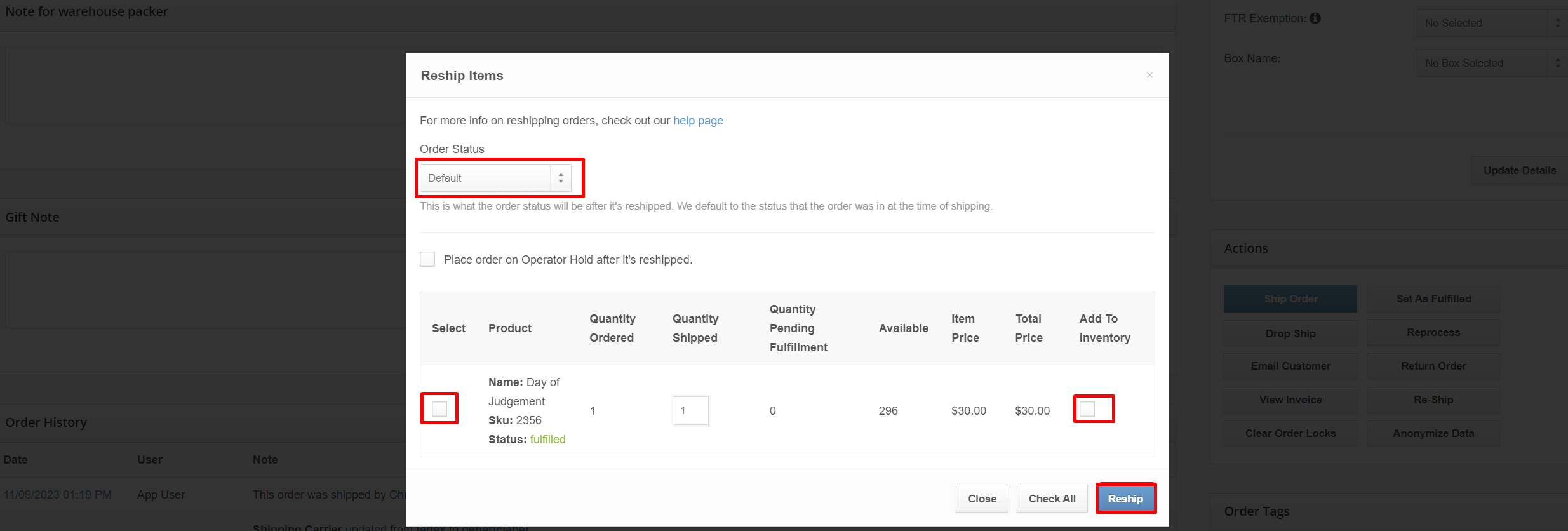
Optional: Add an Operator Hold to the order to prevent it from being processed. This is recommended if other changes need to be made to the order, i.e., address changes, adding additional items, etc. Then, remove the operator hold when the order is ready to be processed.
Select Re-Ship, and change Fulfillment Status to:
Normal: If shipping from our ON or BC locations Today: If shipping from our UT location

Important Notes
When you reship an order, please make sure Ready to Ship = Yes - this is how you can tell an order successfully dropped into the daily order pool.
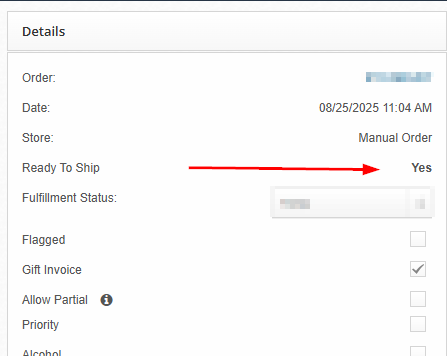
Once the order has been dropped into our order pool, you can also double-check the shipping method to ensure it is the method you want.
You can check the order history at the bottom of the page to see what was originally selected by the system from the automation rules we have set for your account, and if it was changed to something else. You can copy the original shipping method from there.
When orders are reshipped, the new tracking numbers don't update on your store's platform. You can check the new tracking number at the end of the day on the order page. Please note that our cut-off is 12pm for same-day fulfillment.