
As a best practice, if products need to be updated on an order, we recommend checking that the order is not currently being processed in ShipHero (as indicated by an order lock) and placing it on Operator Hold. This will prevent someone in the warehouse from pulling up the order and potentially processing it while you make changes.
Once your changes are complete and the order reflects the adjustments, remove the Operator Hold so the warehouse team can process it accordingly.
How to Add a Product to an Order
Go to Orders> Manage Orders and select the order you need to update.
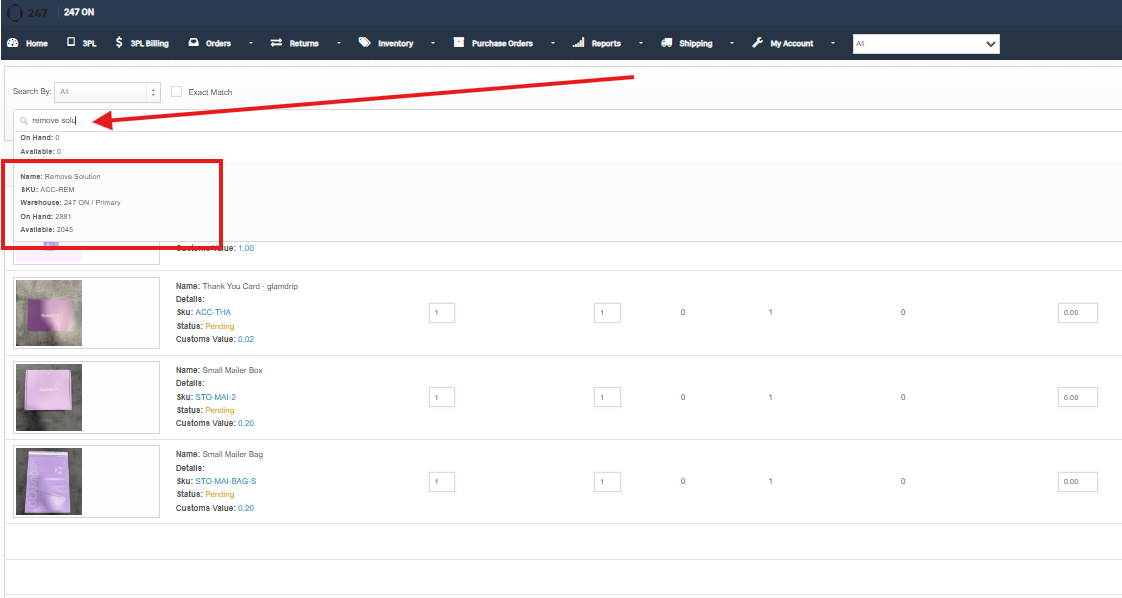
In the Search Bar on the order detail page, type in the name or SKU of the product you need to add. Select the product from the dropdown. If you have multiple warehouses, select the product associated with the appropriate warehouse where the order will be fulfilled.
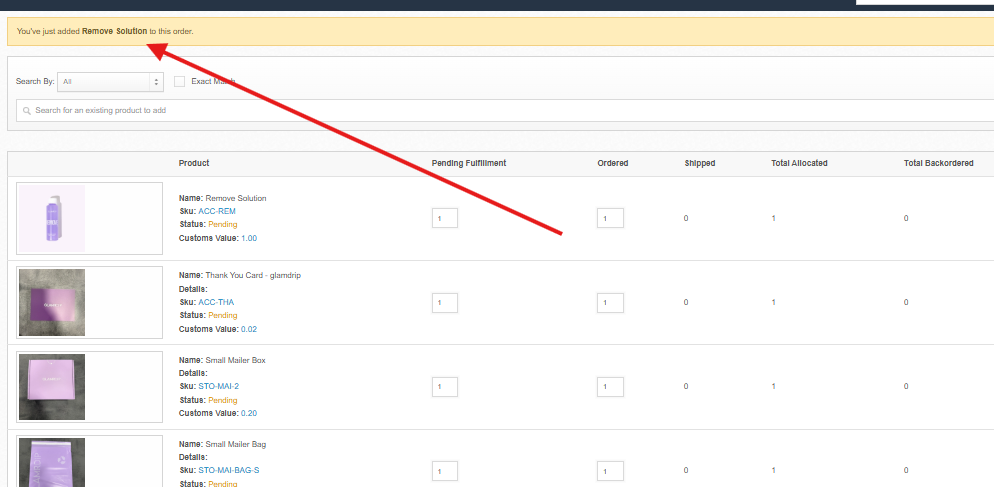
Once an item is selected from the dropdown, it will be added to the order and immediately saved, as indicated by the banner.
How to Update the Quantity of a Product on an Order
Go to Orders> Manage Orders and select the order you need to update.
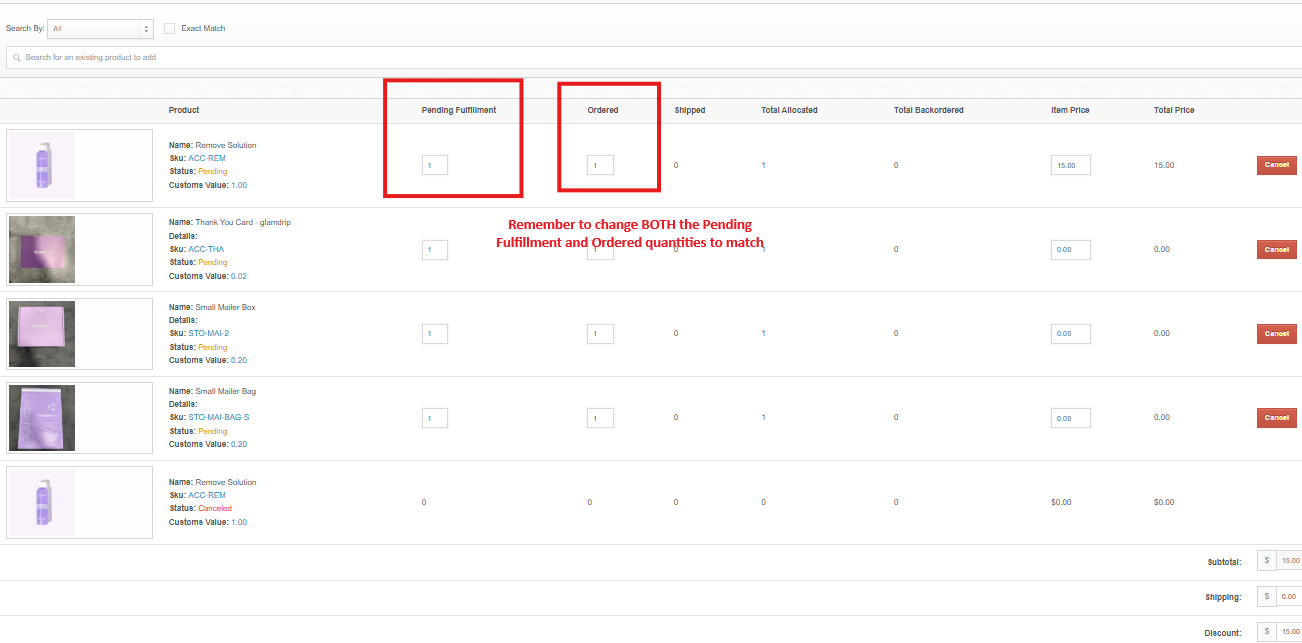
Scroll to the line item that you need to update. Change the Ordered and the Pending Fulfillment sections as needed and hit Save Changes.
How to Remove a Product From an Order
You have two choices when removing a product from an order:
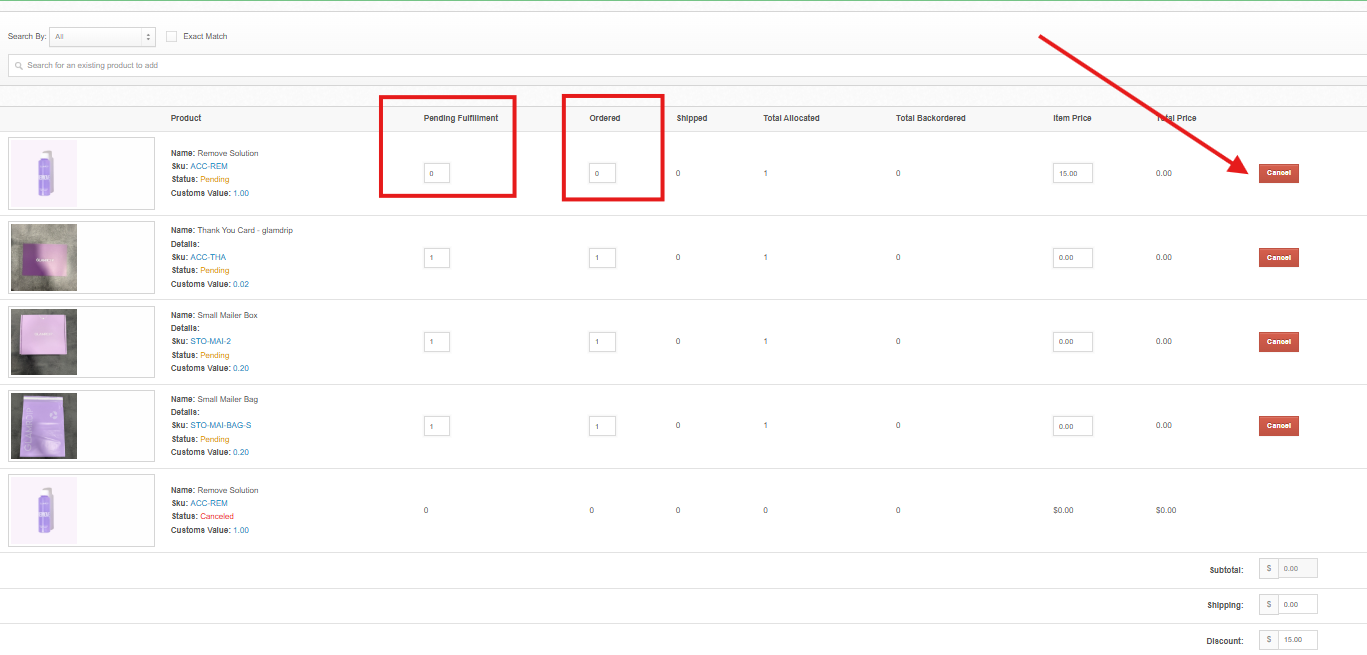
Adjust the Pending Fulfillment quantity and Ordered quantity 0. This updates the line item status in ShipHero to Fulfilled even though it is not part of any shipments and will not show in the shipments report.
Cancel the item using the Cancel button next to the appropriate line item. This updates the line item status to Canceled in ShipHero.
As stated above, neither of these changes will update the products in the order on your store platform.