
Setting signature on delivery informs the carrier to request signature from the customer at the time of delivery.
How to Set Signature on Delivery:
Log in to the app.shiphero.com. Navigate to the orders section. Then Select "Manage Orders" to view a list of orders > Select Order
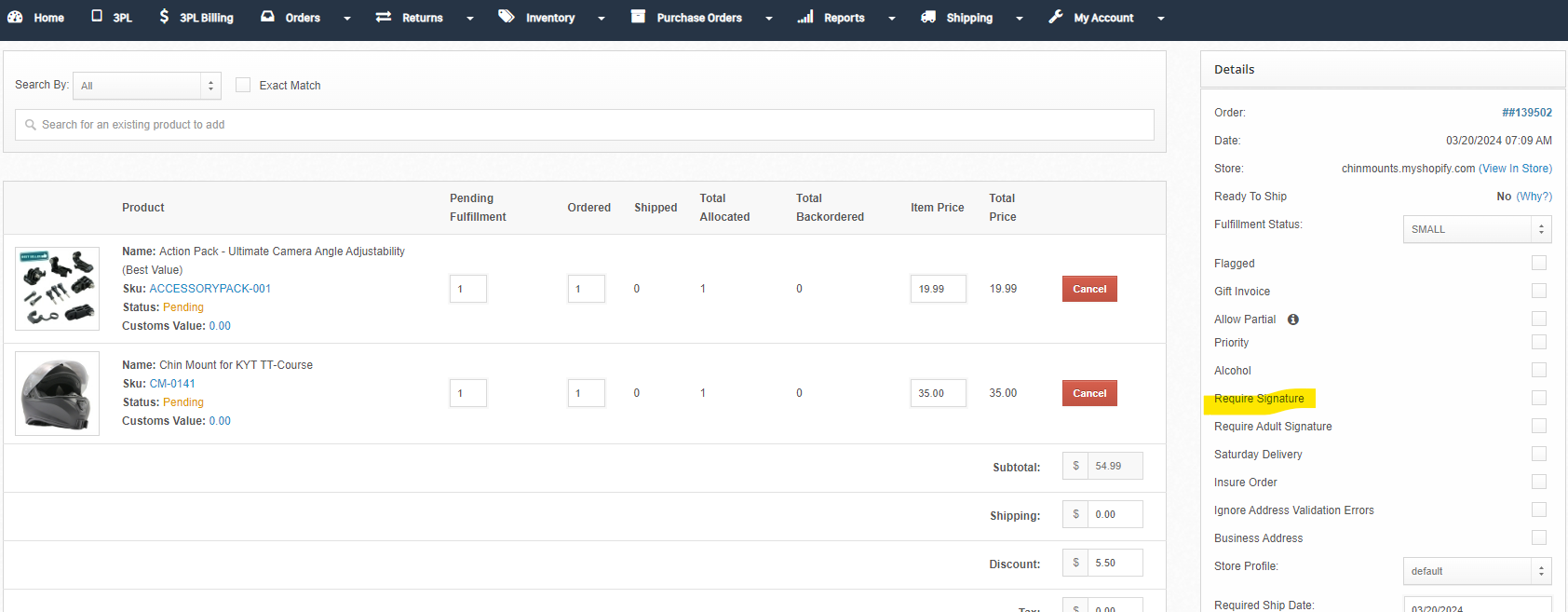
Click on the order to access its details. Enable Signature Requirement. Locate the option labeled "Require Signature" or similar on the order details page. Check the checkbox next to "Require Signature" to enable this feature.
After checking the "Require Signature" checkbox, click on the "Update Details" or similar button to save the changes. Confirmation of Signature Requirement
Verify that the order now reflects the requirement for a signature upon delivery.
Reasons for Requiring Signature
High package value
Re-shipment due to customer claim of non-receipt.
Warranty replacement to ensure confirmation of receipt.