
Transferring inventory between warehouses is a critical part of managing your stock. 247's Transfer Order functionality simplifies this process, ensuring accuracy and providing real-time visibility from start to finish.
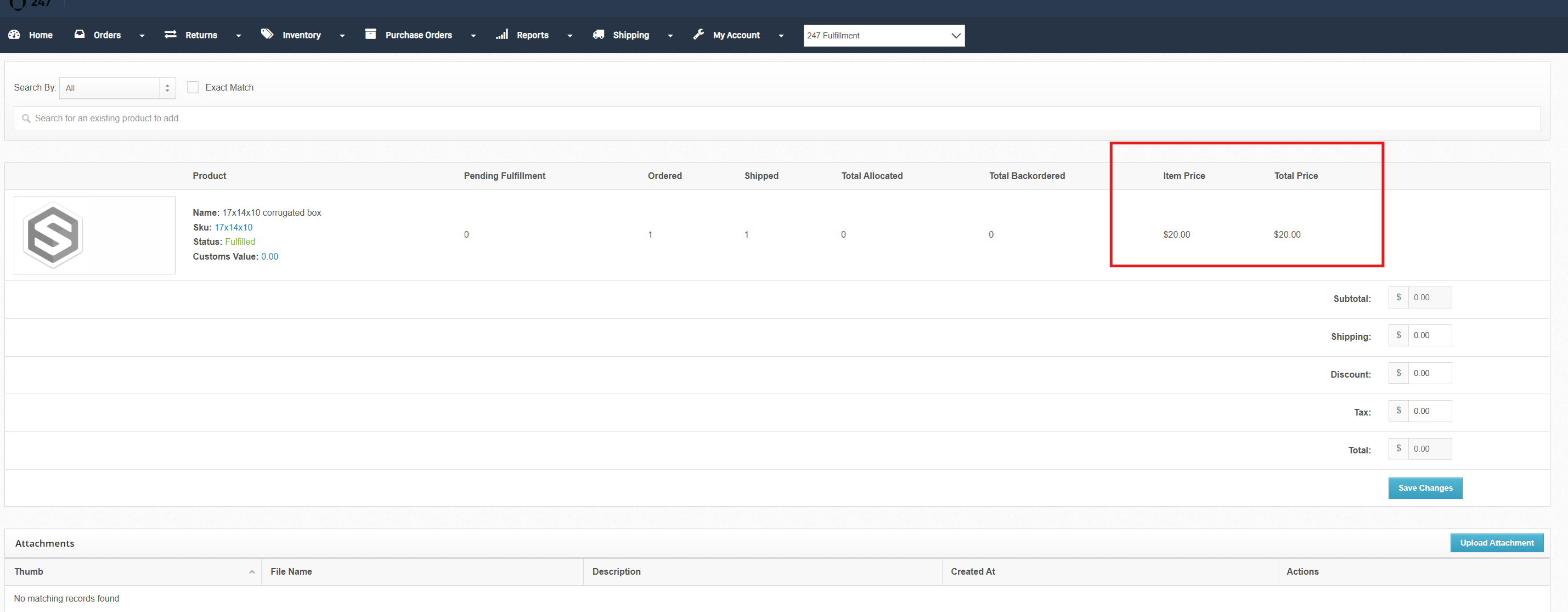
Ensure your Item Price and Total Price have an appropriate value. Never $0.00. If this is an inventory transfer, you may declare your item value at the cost value.
Key Benefits
Automated Tracking: Automatically generates an Order for the sending warehouse and a Purchase Order (PO) for the receiving warehouse. This keeps your inventory levels accurate across all locations.
Inventory in Transit: Get a clear, real-time view of products that are on the move, which helps prevent overselling.
Efficient Workflows: The system provides clear instructions for your packing and receiving teams, reducing errors and saving time.
Proactive Replenishment: Features like "Auto-Add Products" and "Sell Ahead" allow you to replenish stock intelligently and make items available for sale before they even arrive.
Before You Begin
To use the Transfer Order feature, your account must meet a few requirements. Please confirm the following:
Multi-Warehouse is Enabled: Your account must have the Multi-Warehouse feature enabled with more than one warehouse configured. If you are already using multiple 247 warehouses, this is enabled.
Multi-Warehouse Allocation (MWA): If you use MWA rules, you will need to configure a specific rule to ensure the Transfer Order is allocated correctly. Please reach out to your account coordinator to ensure this is set up.
Important Notes:
Editing Orders: The Transfer Order and its corresponding Purchase Order are separate documents after creation. Edits made to one will not automatically update the other. You must make changes to each one individually.
Sell Ahead Feature: To use the Sell Ahead feature, you must apply the quantities to the Purchase Order after it is generated. This allows your online store to show a positive inventory count so customers can place orders for products that are still in transit.
How to Create a Transfer Order
When you create a Transfer Order, ShipHero automatically generates two things:
A Purchase Order (PO) for the warehouse receiving the inventory.
An Order for the warehouse sending the inventory.
Both will have an identical name starting with "TO-" for easy identification.
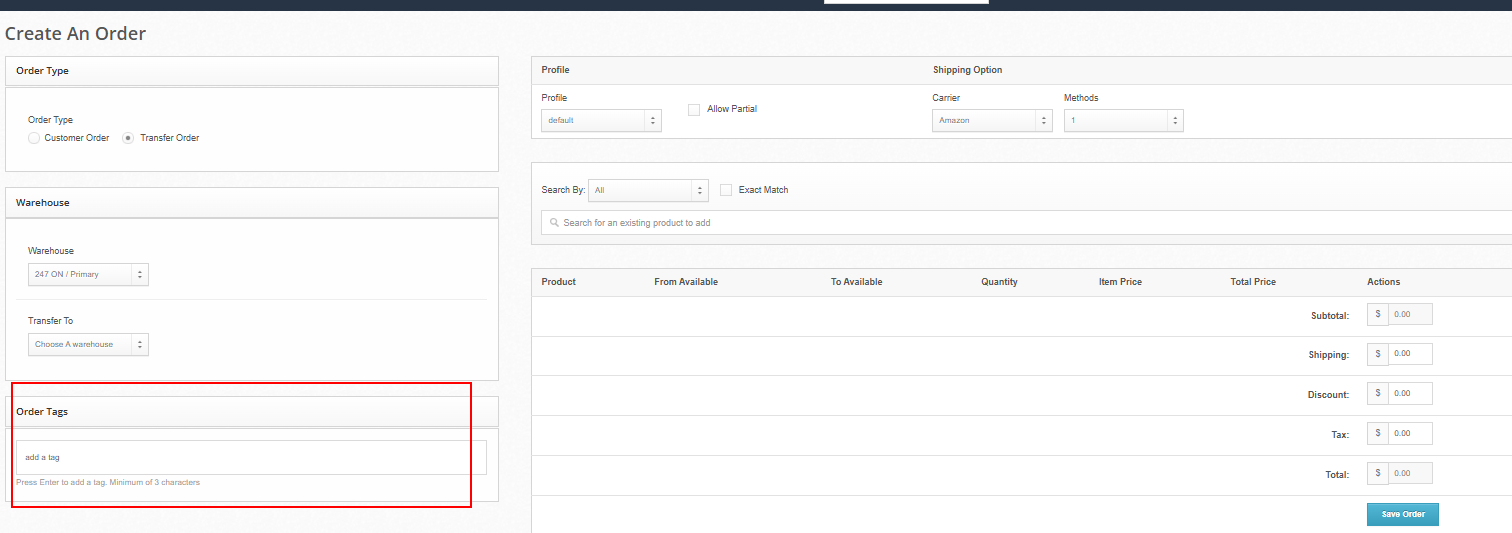
Required Origin Warehouse Tag
When creating a transfer order, you must add the FORCE tag for the warehouse you want the inventory to ship from.
The tag selects the origin warehouse the order ships from, not the destination warehouse. For example, a transfer from Ontario to BC requires FORCE-ON, with BC selected under Transfer To.
Origin Warehouse (Ships From) | Order Tag |
|---|---|
247 ON — Ontario | FORCE-ON |
247 UT — Utah | FORCE-UT |
247 FL — Florida | FORCE-FL |
247 BC — British Columbia | FORCE-BC |
247 OH — Ohio | FORCE-OH |
Enter the tag exactly as shown in the Order Tags field and press Enter to add it before clicking Save Order. Apply only one FORCE tag per order.
Step-by-Step Instructions:
Navigate to Orders -> Create an Order.
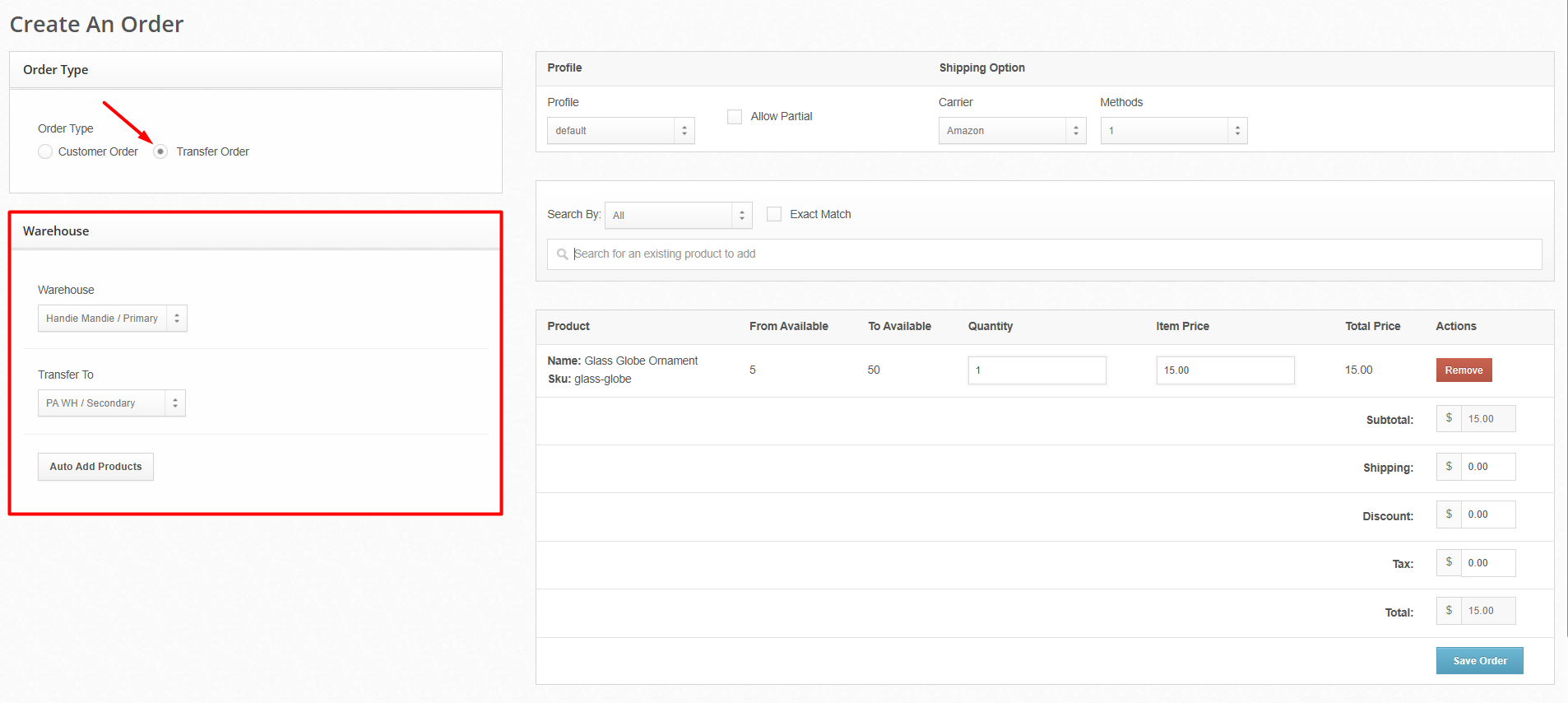
Select Transfer Order as the order type.
Choose the Warehouse you are transferring inventory from and the Transfer To warehouse where it will be received.
In Order Tags, enter the FORCE tag matching the origin Warehouse selected above, then press Enter. Use the tag reference above; do not use the destination warehouse tag.
Add SKUs and Quantities.
You can use the "Auto-Add Products" button to automatically add products needed in the destination warehouse based on backorder quantity or reorder level.
Use the From Available and To Available columns as a reference when adjusting quantities.
Click Save Order.
After saving, you will be taken to the Transfer Order's details page. A green banner will appear at the top with a link to the corresponding Purchase Order.
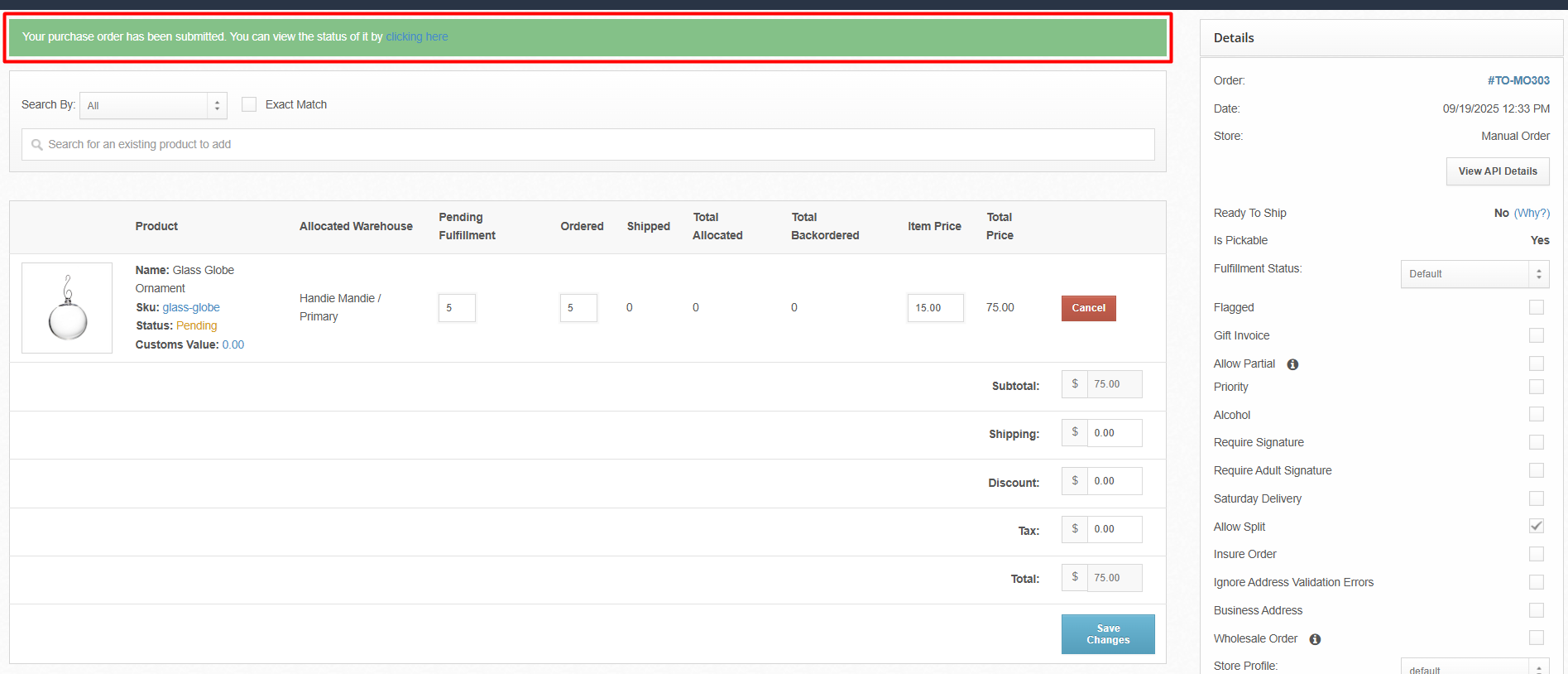
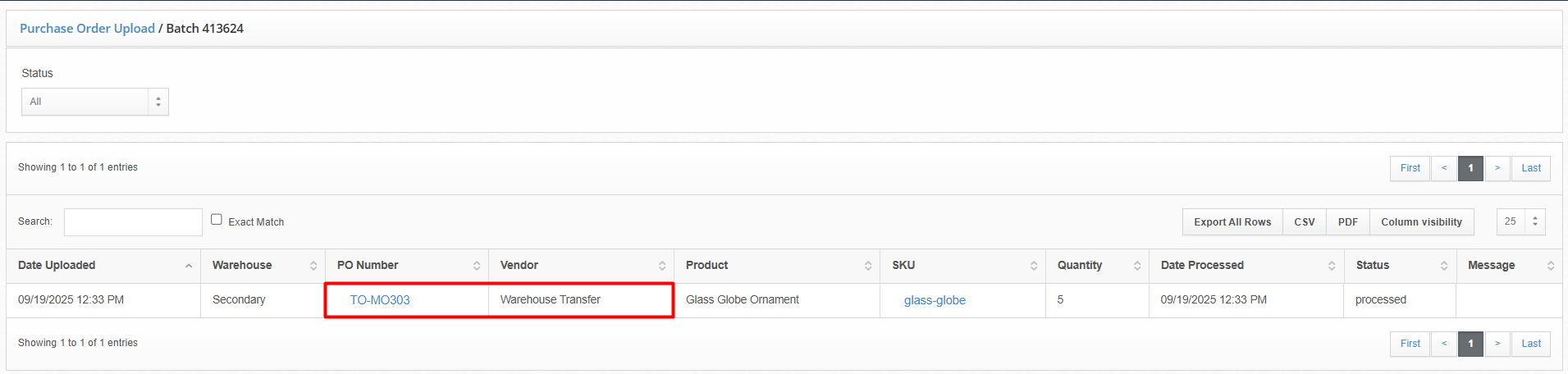
You can also find the Purchase Order later by searching for the "TO-" name on the All Purchase Orders page.
What Happens Next?
The Transfer Order process is a two-part workflow:
Sending Warehouse: Process the Transfer Order as you would any other outbound order. Pick, pack, and ship the items.
Receiving Warehouse: Once the inventory arrives at the destination, process the Transfer Order Purchase Order just as you would any other received shipment. This will put the inventory into your stock at the new location.