
Steps to Add Attachments
You can upload attachments to an order via 247's WMS. The supported formats are pdf, png, jpg, and CSV.
This will be useful if you upload B2B, FBA labels or instructions for order customizations, etc.
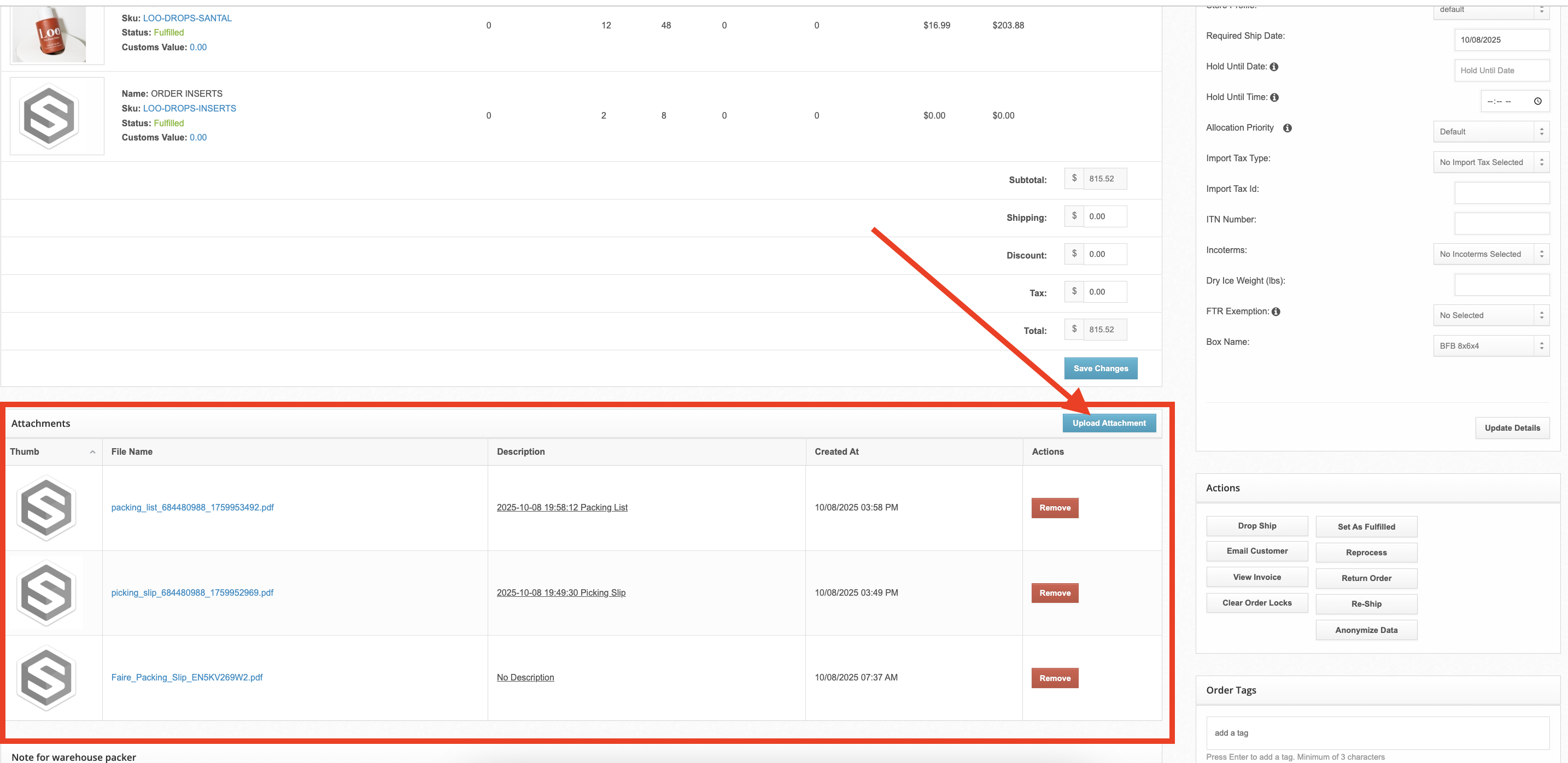
Additional Info
Attachments are NOT automatically printed and included when shipping an order. 247 must route orders with attachments into a dedicated warehouse workflow This can be accomplished in a variety of ways depending on the use case.
For orders that follow a common pattern (e.g. Faire orders, consistent retailer orders etc) that will require attachments to be printed, we can set up automation rules to ensure orders that meet these criteria automatically flow to the dedicated workflow (e.g. if store tag contains "x", then ensure order goes through attachment workflow). In these cases, please notify your account manager ahead of time or during onboarding.
For one-off orders with attachments added after the order has been imported/created in ShipHero, we'll need to manually re-assign the workflow. In these instances, please:
Place the order on hold and change it to "WHOLESALE" status
Create a warehouse packing note with instructions on what to print and where to place the attachments in the physical order
Notify your account manager
Release upon confirmation from your account manager that the workflow has been changed