
Create the B2B order within our system as if you were creating a normal order. Create an order starting with the prefix "B2B". e.g. B2b-182931
This ensures that we are able to recognize the order as a B2B order and route it to the correct warehouse packing flow.
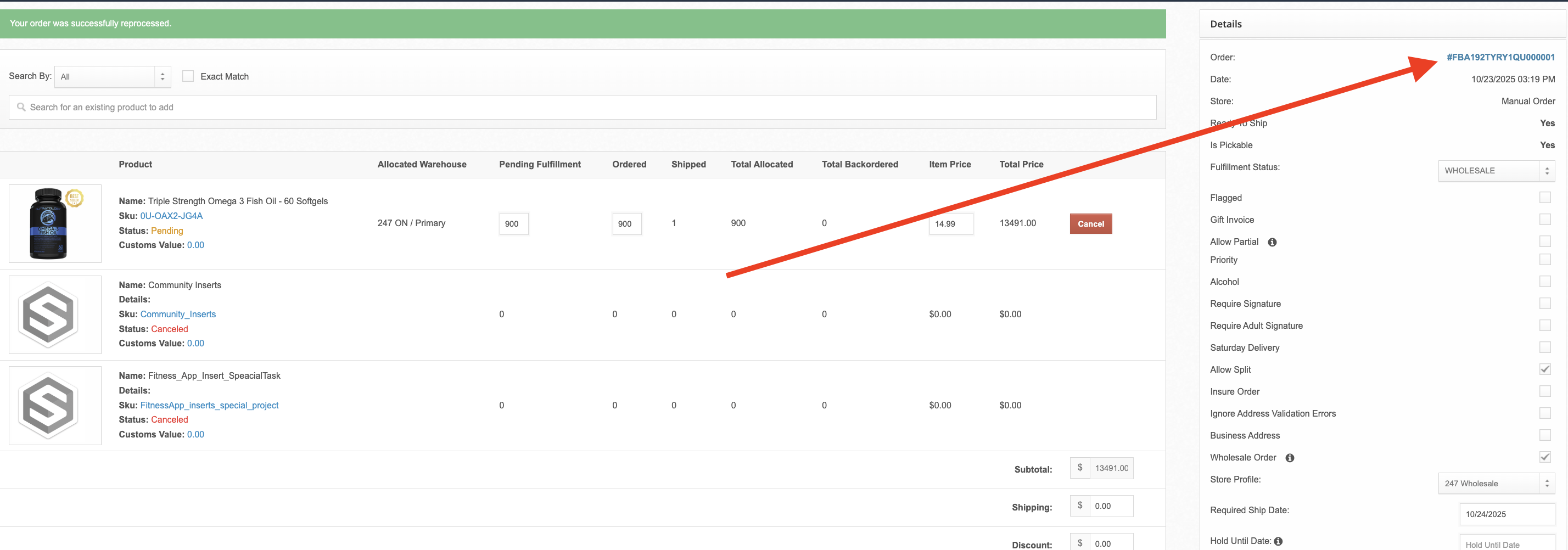
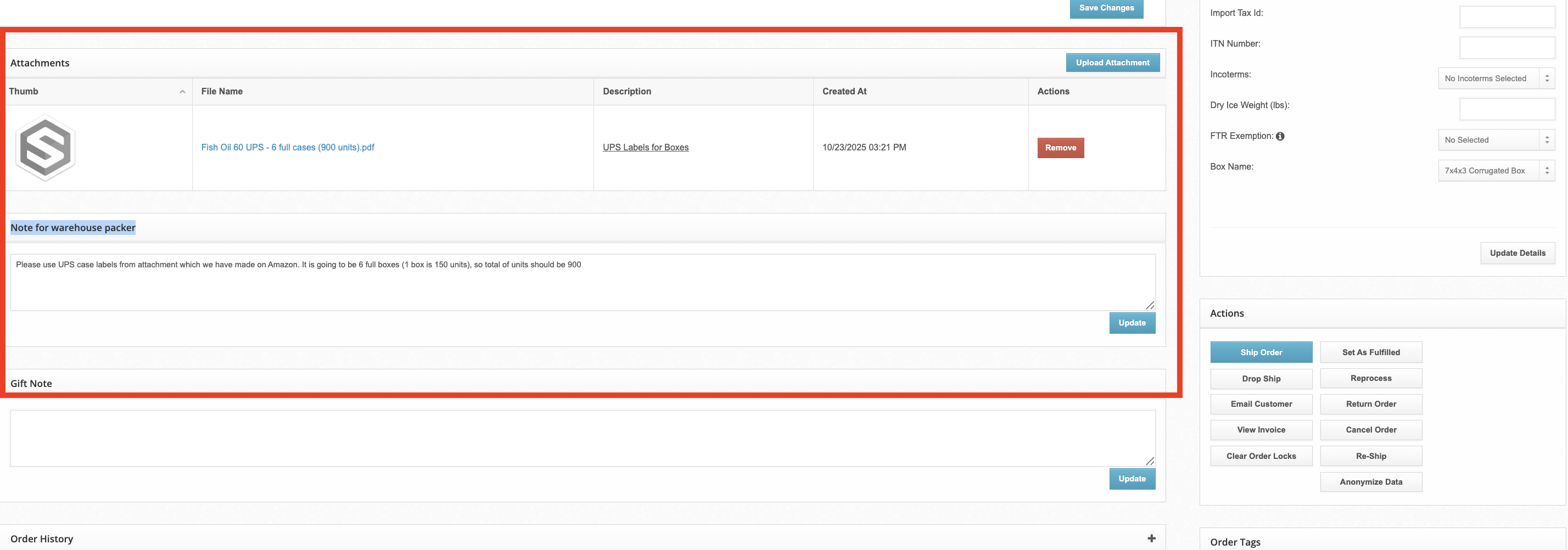
Once the manual B2B order is created, upload all required documentation, labels, packing lists, commercial invoices etc. to the "Attachments" section of the order. See our guide on Adding Attachments to Orders.
Include any instructions in the Note for warehouse packer field. In the example below, the client has let us know how many cases of product to ship to fulfill the 900 required units and that we will be using Amazon generated UPS labels.
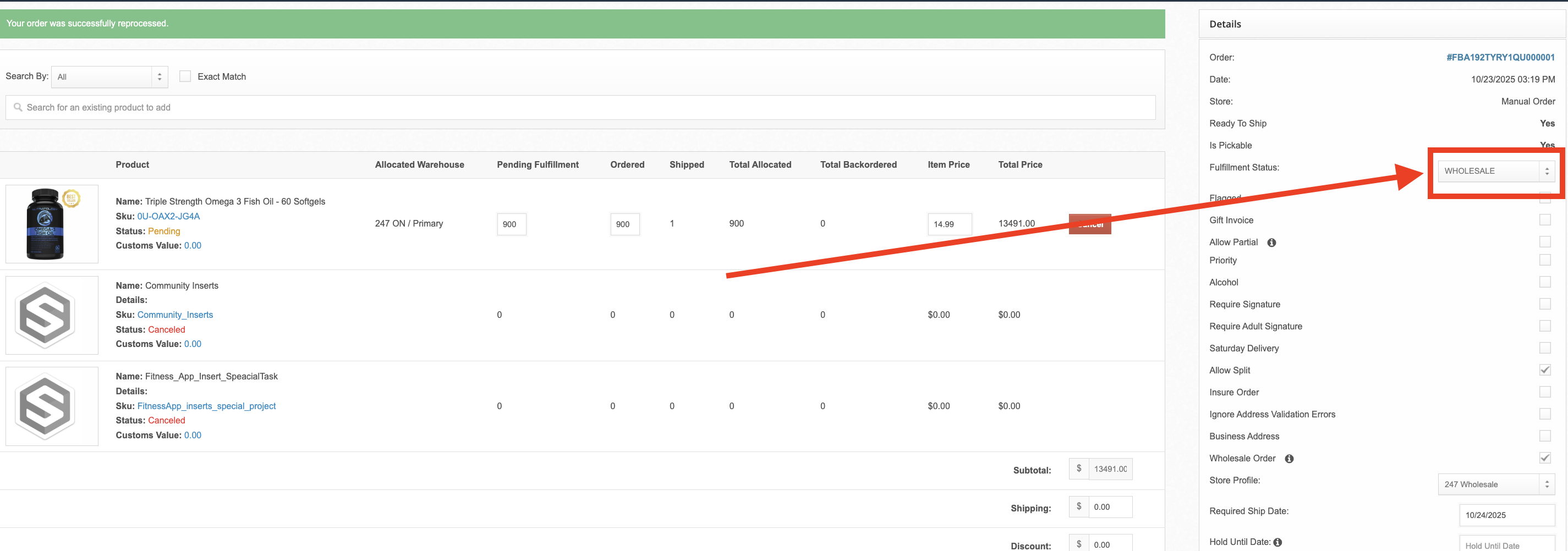
Switch the Fulfillment Status to "WHOLESALE" status to ensure it routes to our warehouse wholesale packing flow.
If you require us to use vendor-generated shipping labels, please include those in the attachments + instructions. If not, we will use our own carrier accounts. e.g. if a B2B customer requires you to use their FedEx labels.
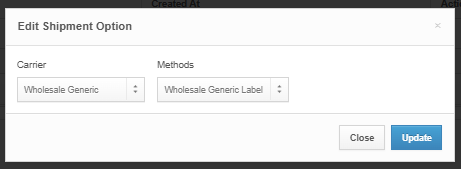
Important Note: If you are attaching a shipping label for the warehouse team to use, you must change the shipping method to "Generic label"
If the shipment requires LTL / FTL transportation, please include any necessary booking information in the "Note for warehouse packer" section. Your account manager will reach out to you with a quote for approval prior to processing.